Tasks
Tasks is Ration's work-planning module. Use it to capture work, organise tasks into folders, track assignments and due dates, and move between list, board, dashboard, and daily planning views.
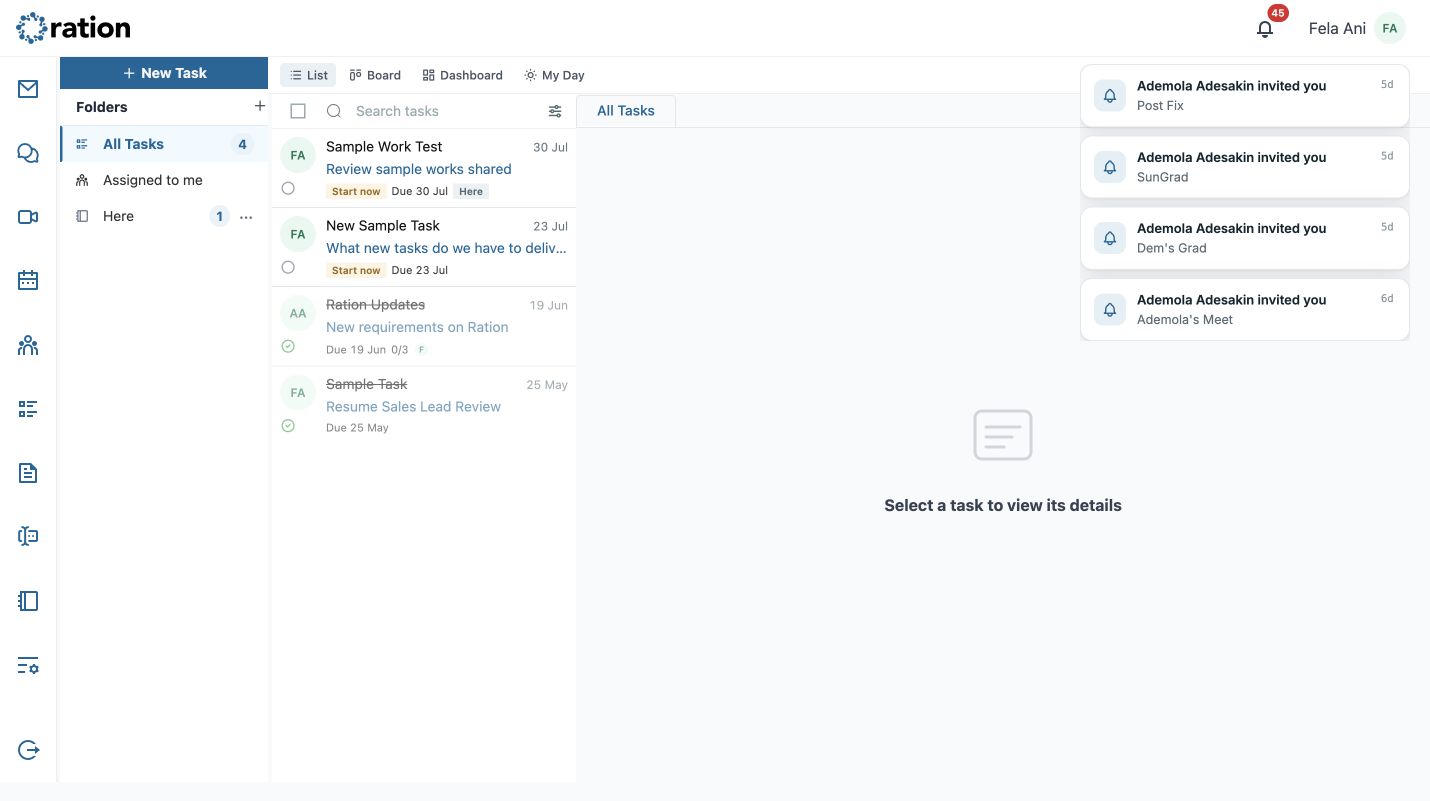
Navigate Tasks
The large desktop workspace has four areas:
- The far-left rail switches between Ration modules.
- The Folders sidebar contains All Tasks, Assigned to me, and your custom folders. Select a folder to change the current task list; use the + beside Folders to add one.
- The task-list column shows task title, owner initials, description preview, status, due date, folder, and any visible subtask progress.
- The detail pane opens the selected task. It prompts you to select a task when none is open.
Use the view switcher at the top:
| View | What it is for |
|---|---|
| List | Reviewing tasks as a detailed, scannable list. |
| Board | Organising work visually by status. |
| Dashboard | Reviewing task activity and progress at a higher level. |
| My Day | Focusing the current day's work. |
Create a task
Select New Task. Ration opens a separate, closable New task tab so the draft does not replace the task list.
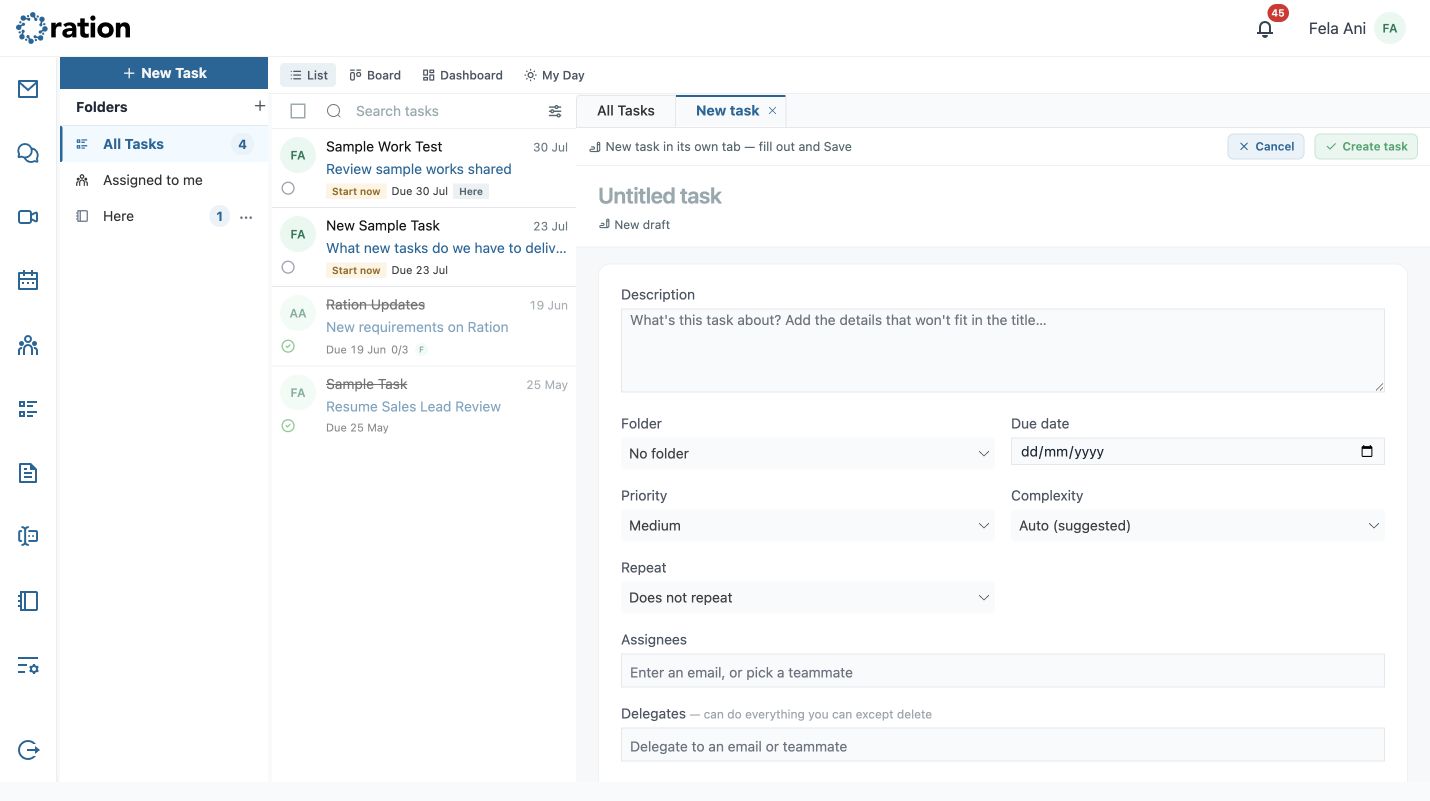
- Enter a descriptive task title and add supporting context in Description.
- Choose a Folder, or leave it as No folder until the task has a home.
- Set a Due date when the task has a deadline.
- Choose a Priority and a Complexity level. The default complexity is Auto (suggested).
- Set Repeat when the task recurs; otherwise leave Does not repeat.
- Add Assignees for people responsible for the work.
- Add Delegates when someone should be able to manage the work for you. Delegates can do everything you can except delete the task.
- Add Labels and Linked items to connect the task with related Ration work.
- Select Create task to save, or Cancel to discard the draft.
Assignees and delegates may receive visibility or notifications about the task. Confirm ownership, deadline, folder, and recipients before selecting Create task.
Add subtasks and follow progress
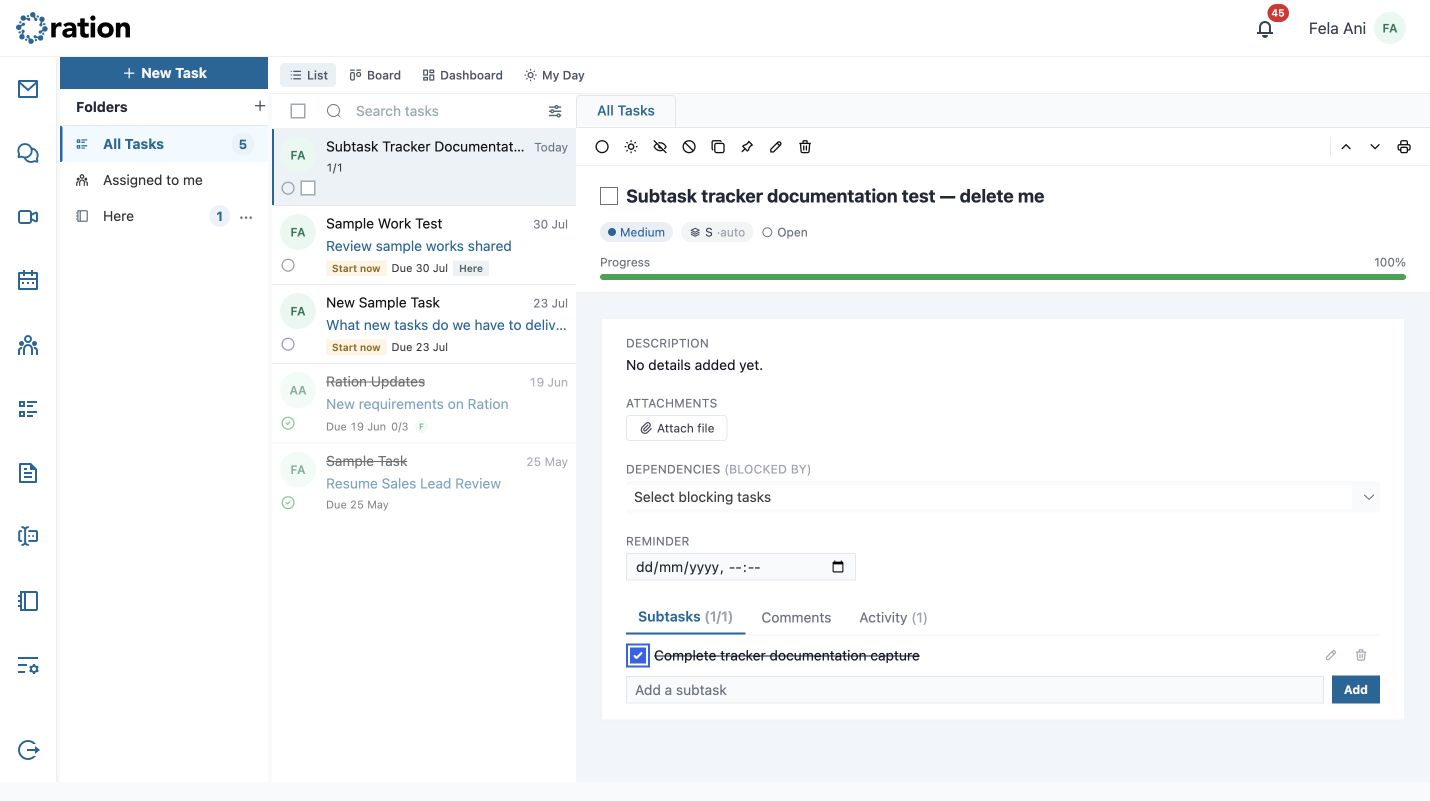
Open a task in the detail pane and select Subtasks. A new task starts with No subtasks yet; owners and delegates can use the Add a subtask field to create the checklist items that make up the work.
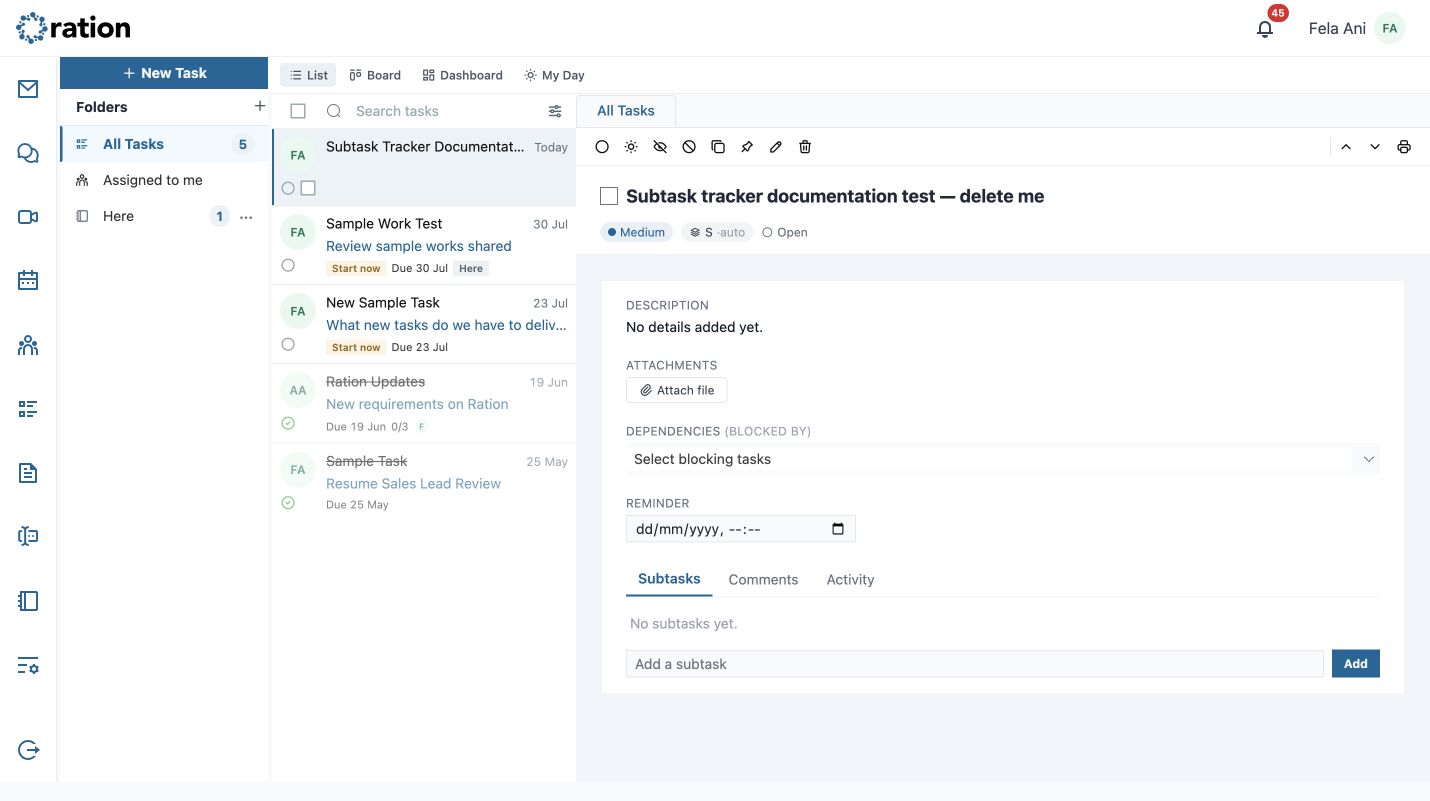
- Enter a clear, actionable subtask title and select Add.
- Ration immediately adds it to the task and displays a completed/total counter in both the selected task and the task list.
- Select the checkbox beside a subtask when it is complete.
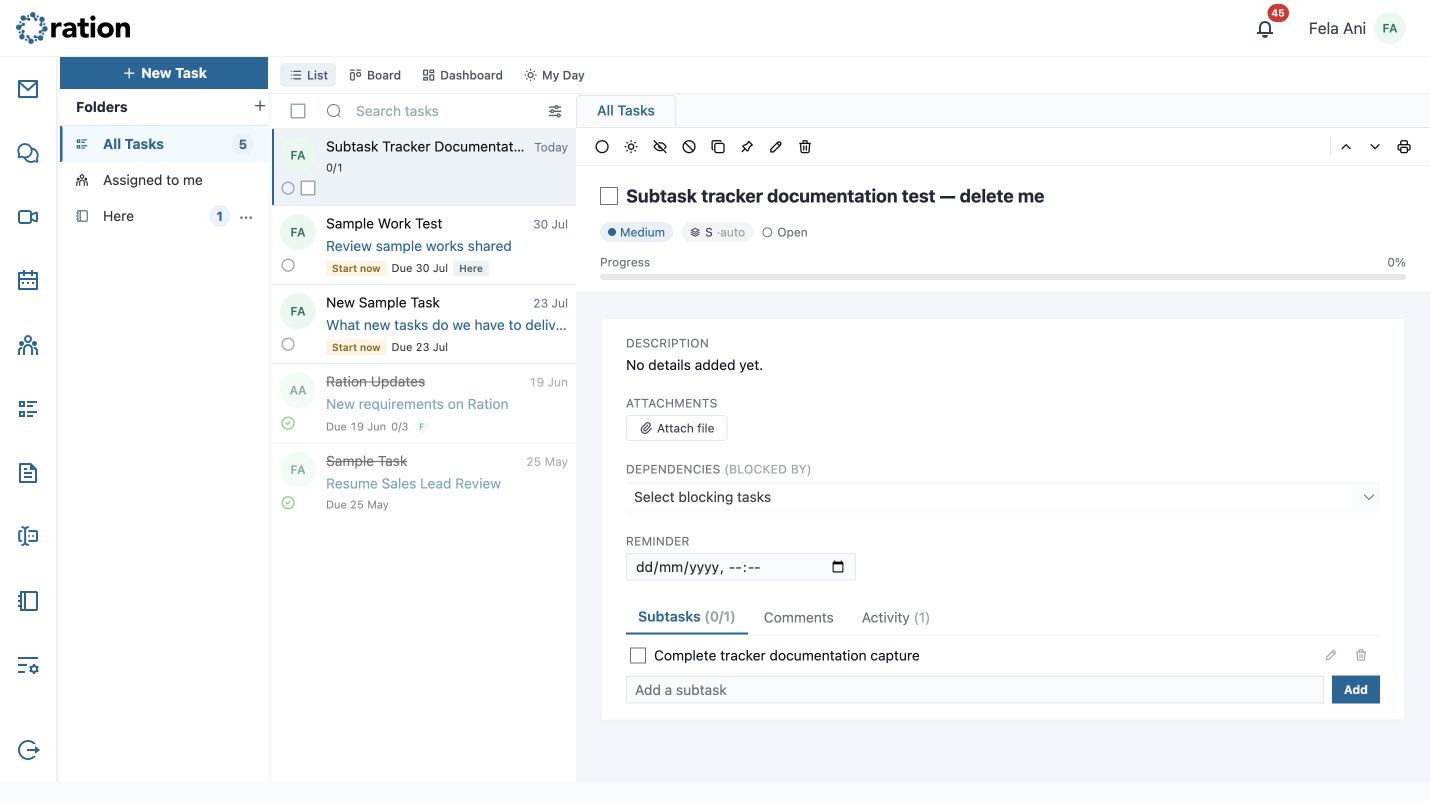
The Progress tracker is calculated from completed subtasks. In the captured task, the first subtask changes the counter from 0/1 and the tracker from 0% to 1/1 and 100% when its checkbox is selected.
Owners and delegates can add, change, and remove subtasks. Assignees can progress work assigned to them, including completing available subtasks, but do not get the task-management controls that belong to the owner or delegate.
Coverage note
This Tasks pass covers the verified large-screen workspace, task-list spine, view switcher, task-creation editor, and the live subtask progress tracker. Task detail tools, task completion, folder CRUD, board actions, and dashboard controls will be documented from their verified screens in the next pass.