Sign in to Ration
The Ration login page is the starting point for every user session. For Ration SaaS, open https://app.ration.works. Sign in with your Ration email address and password; if two-factor authentication is enabled, complete the second verification step before Ration opens your workspace.
If your organisation uses an on-premises Ration installation or an MSP-hosted service, replace app.ration.works with the exact hostname supplied by your administrator or provider. MSP customers can use that same provider hostname with /register when onboarding a new customer; standalone on-premises installations do not provide /register.
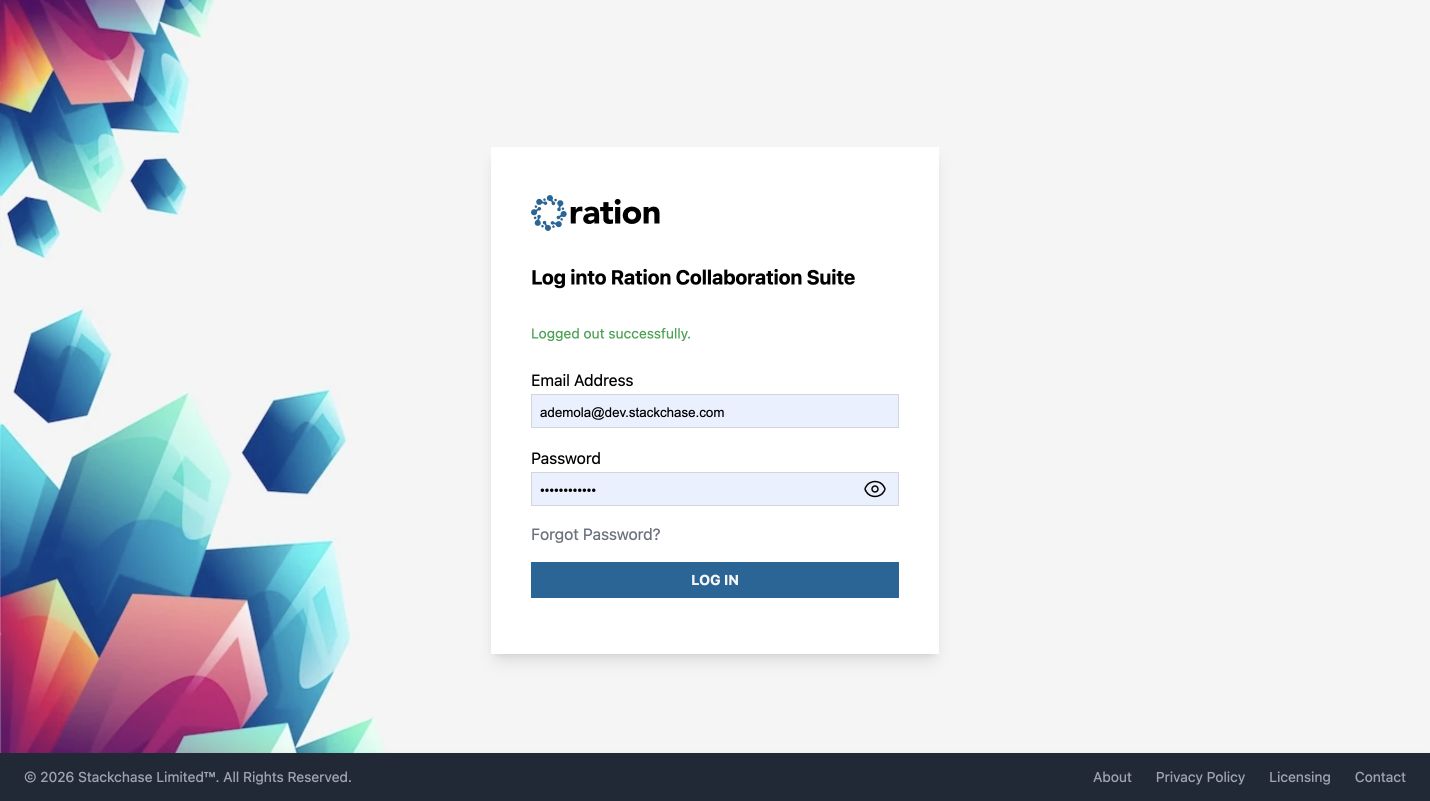
Sign in without 2FA
- Enter your Email Address.
- Enter your Password.
- Select Log In.
Ration opens your last workspace after the credentials are verified.
Sign in with 2FA
Enter your email address and password as usual. If 2FA is enabled on your account, Ration continues to the Two-Factor Verification screen instead of opening the workspace.
- Open the Ration entry in your TOTP authenticator, such as 2FAS.
- Enter its current six-digit code in Token.
- Select Verify and continue.
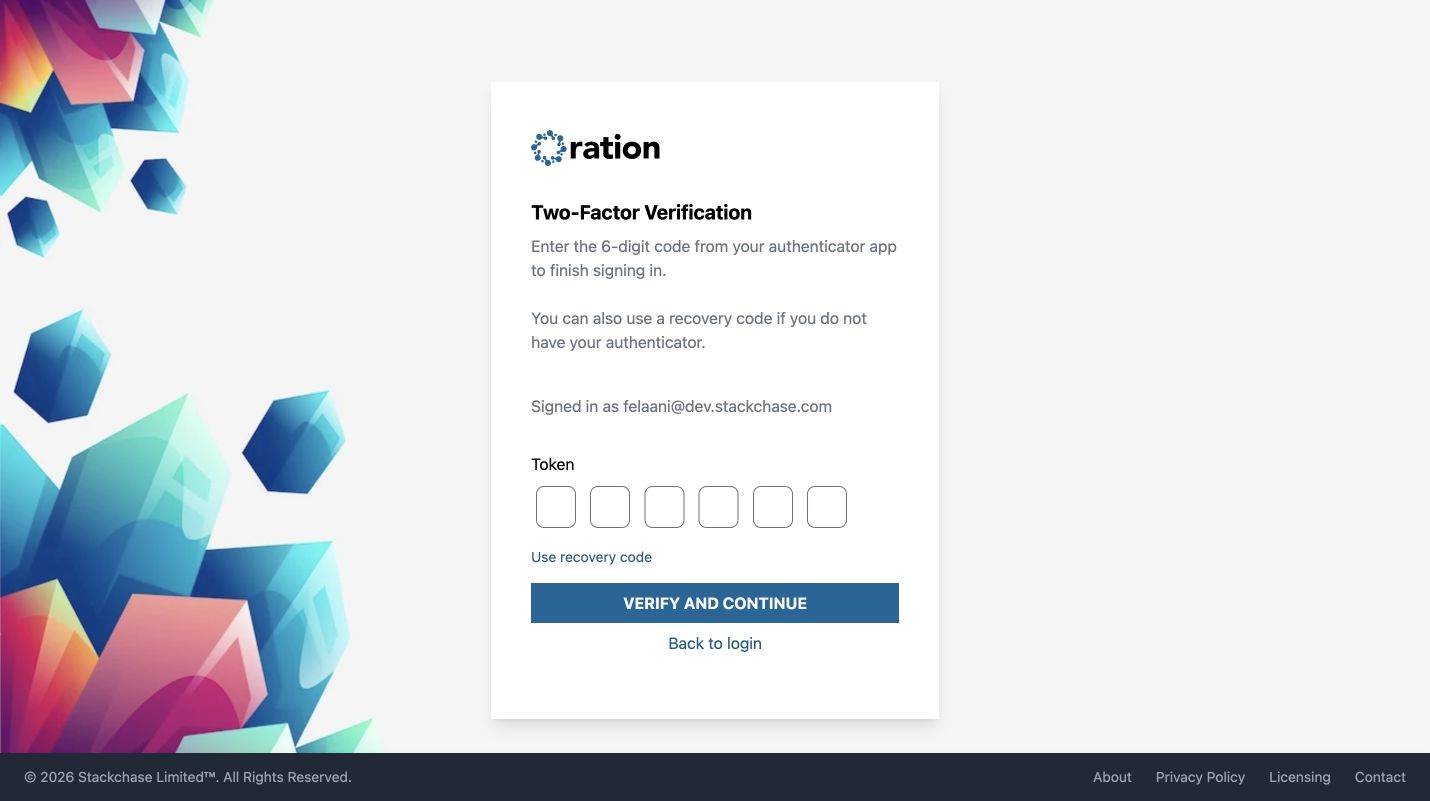
Use Use recovery code if your authenticator is unavailable. Select Back to login to return to the email-and-password screen. See Settings: Security for enabling 2FA, supported TOTP clients, and the required application-specific passwords for IMAP/SMTP clients.
Reset a forgotten password
Select Forgot Password? from the login page.
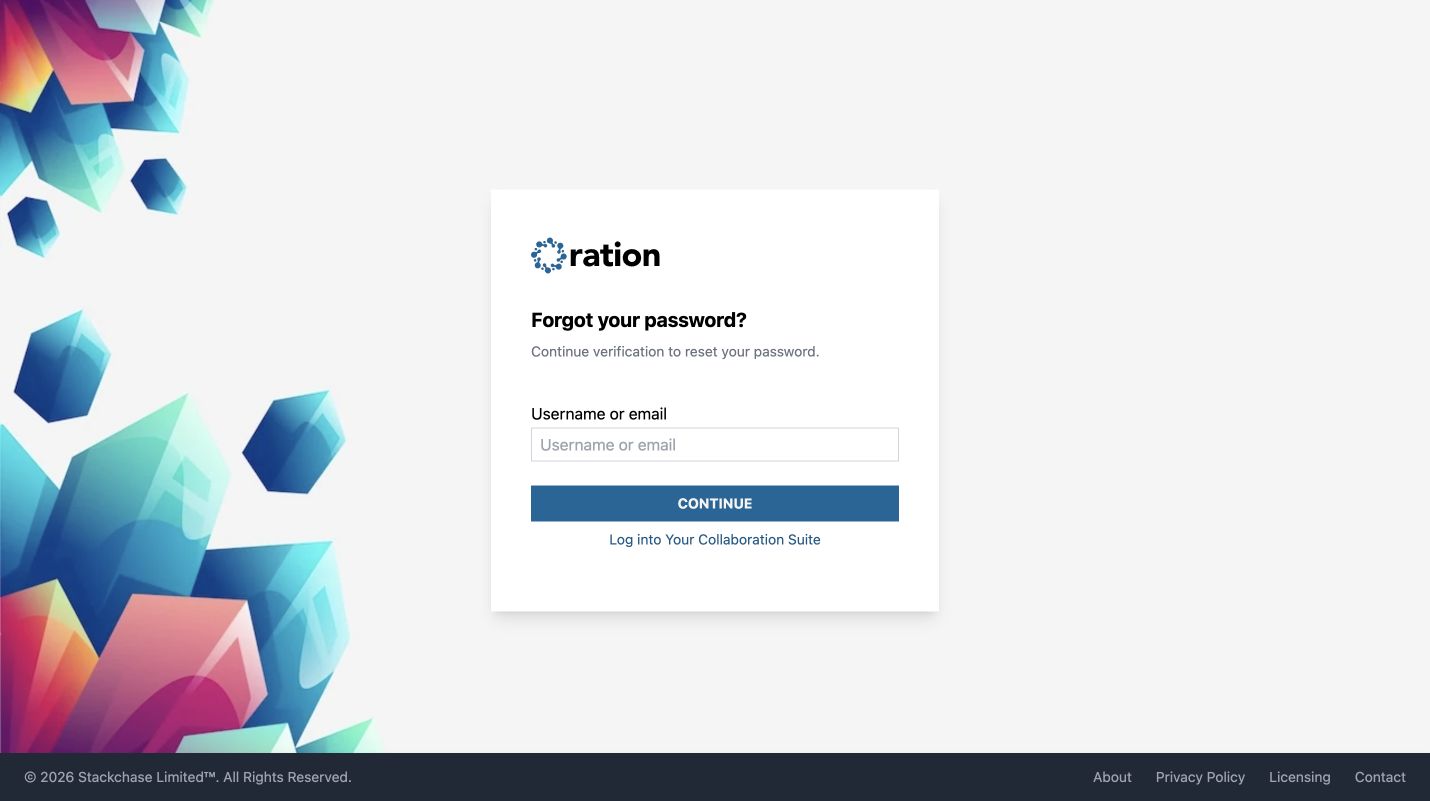
- Enter your Ration username or email address.
- Select Continue.
- Complete the verification steps Ration provides, then create and confirm a new password.
For security, do not submit a reset request for another person’s account. If you cannot complete the verification step, contact your Ration administrator or support team.
Sign out
While signed in, open the account controls in the application header and select Sign out. Ration ends the active session and returns you to the login page. Always sign out when using a shared or public computer.