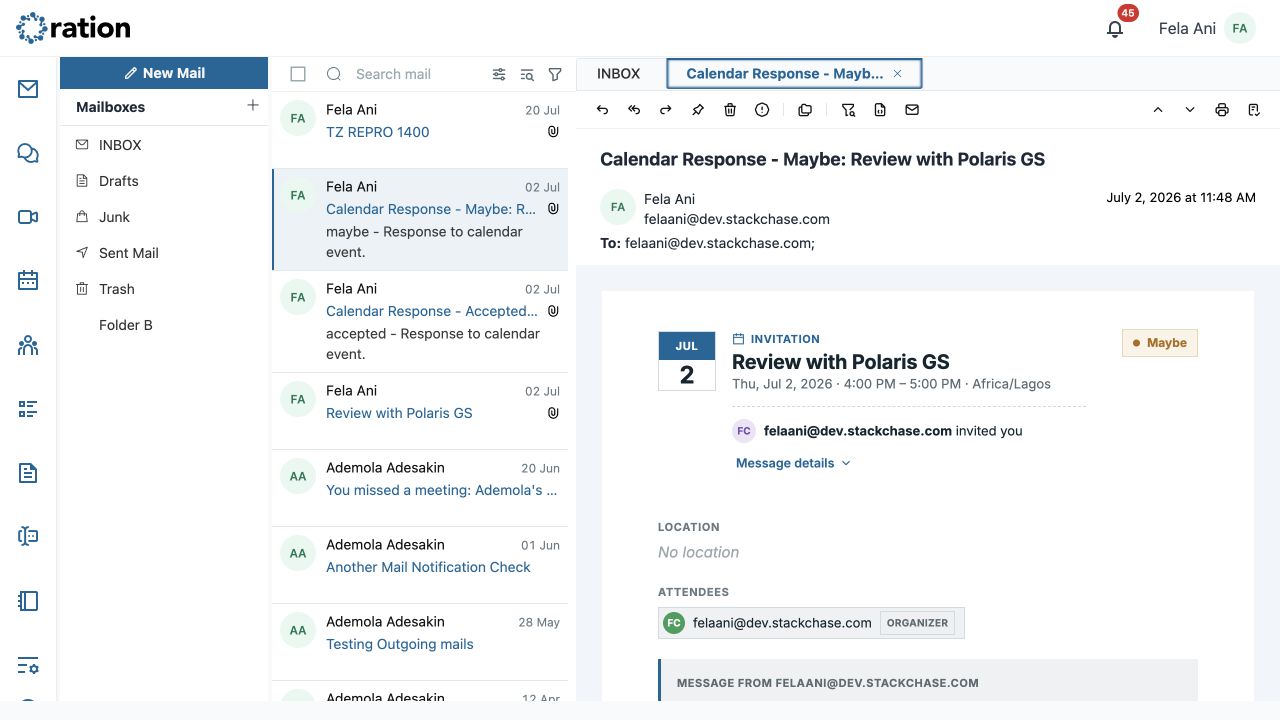
Mail is organised from left to right: choose a mailbox, find a message, then read or compose in the right pane.
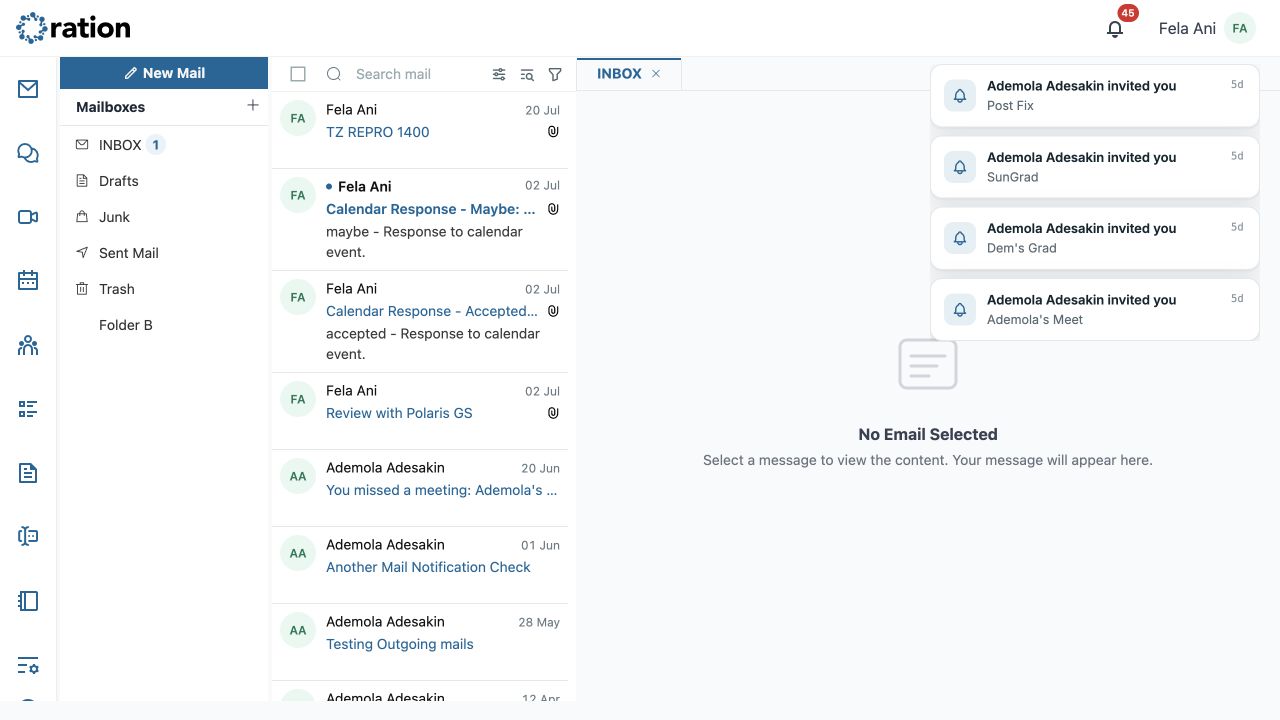
Mailboxes and message list
- New Mail opens an independent compose tab; it does not send until you select Send.
- Select Inbox, Drafts, Junk, Sent Mail, Trash, or a custom folder to set the list scope.
- Use Search mail, Filter and sort, Advanced search, or Filter builder to narrow the current mailbox.
- Select all applies only to messages visible in the active list.
- Use Move to to file mail. Delete moves mail to Trash; Empty trash is a mailbox-wide action available only in Trash.
Reader controls
The message reader provides Reply, Reply All, Forward, Pin Message, Delete, Junk/Not spam, Move to, Filter message, Message Source, Mark as unread/read, Previous, Next, Print, Create task, and Message details.
Use Reply for the sender only. Use Reply All only after checking every To/Cc recipient. Use Forward when you need to choose a different audience.
Reply, Reply All and Forward
Selecting a response opens a dedicated response tab. Ration reuses that tab when you select another response action for the same source mail, rather than creating competing drafts.
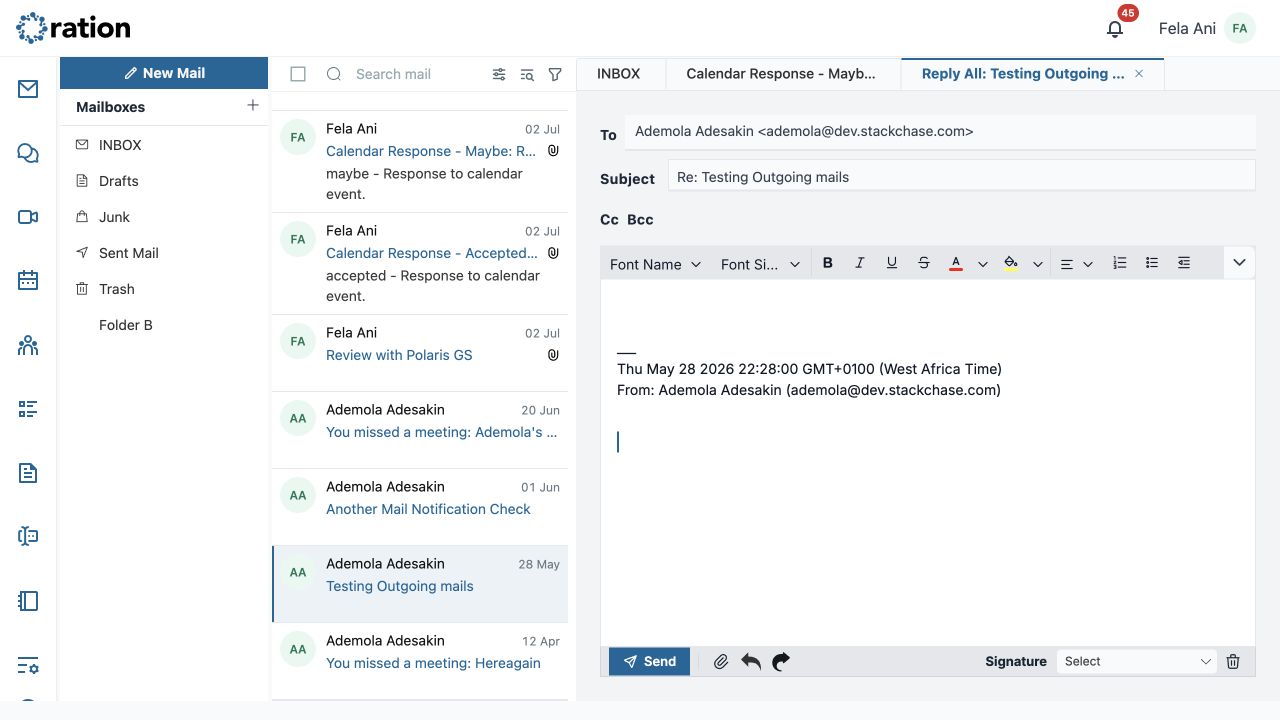
| Mode | Ration prepares |
|---|---|
| Reply | Sender, Re: subject and quoted context. |
| Reply All | Sender plus original To/Cc recipients other than you. |
| Forward | New recipient list, Fwd: subject, quoted context and normal document attachments. |
Change response mode while editing
Before you edit, choosing another response mode regenerates the current response tab immediately. After you make edits, Ration protects the draft and presents a clear choice:
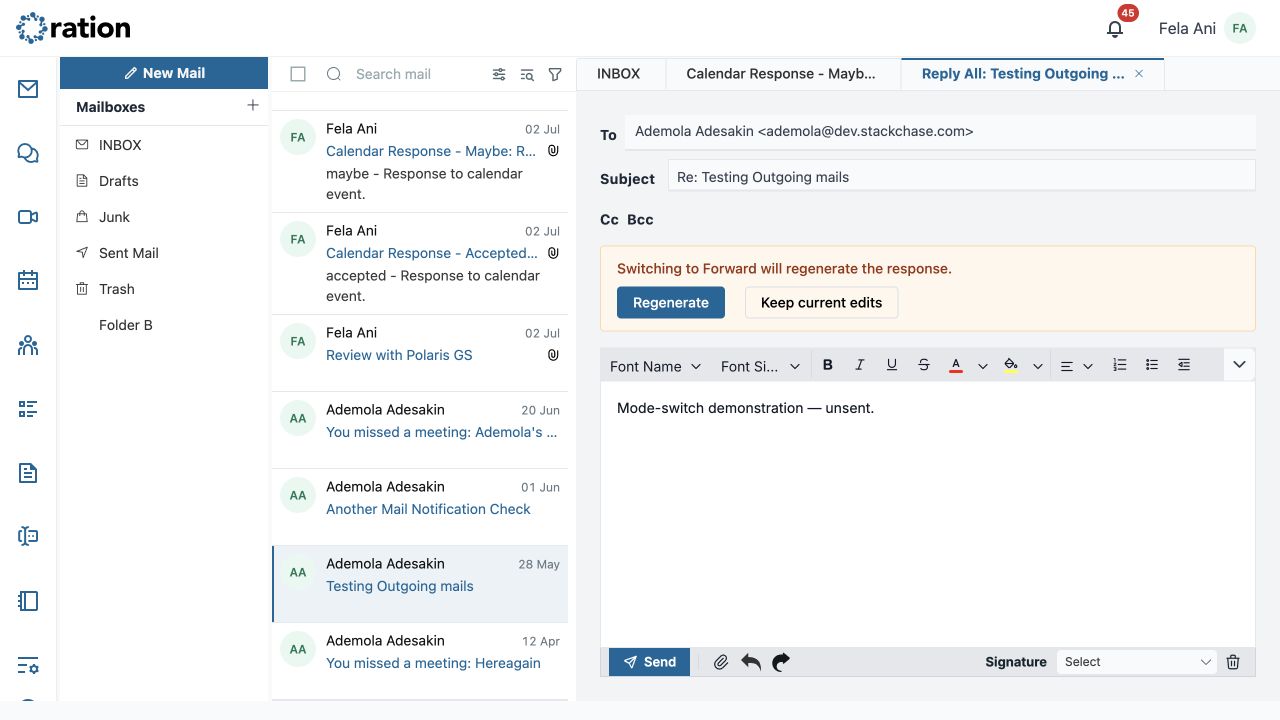
- Regenerate rebuilds the response for the selected mode and replaces existing edits.
- Keep current edits cancels the mode change and preserves the draft.
Custom threads
Ration uses a conversation tree, not only a chronological message chain. Thread controls appear for conversations with more than one message.
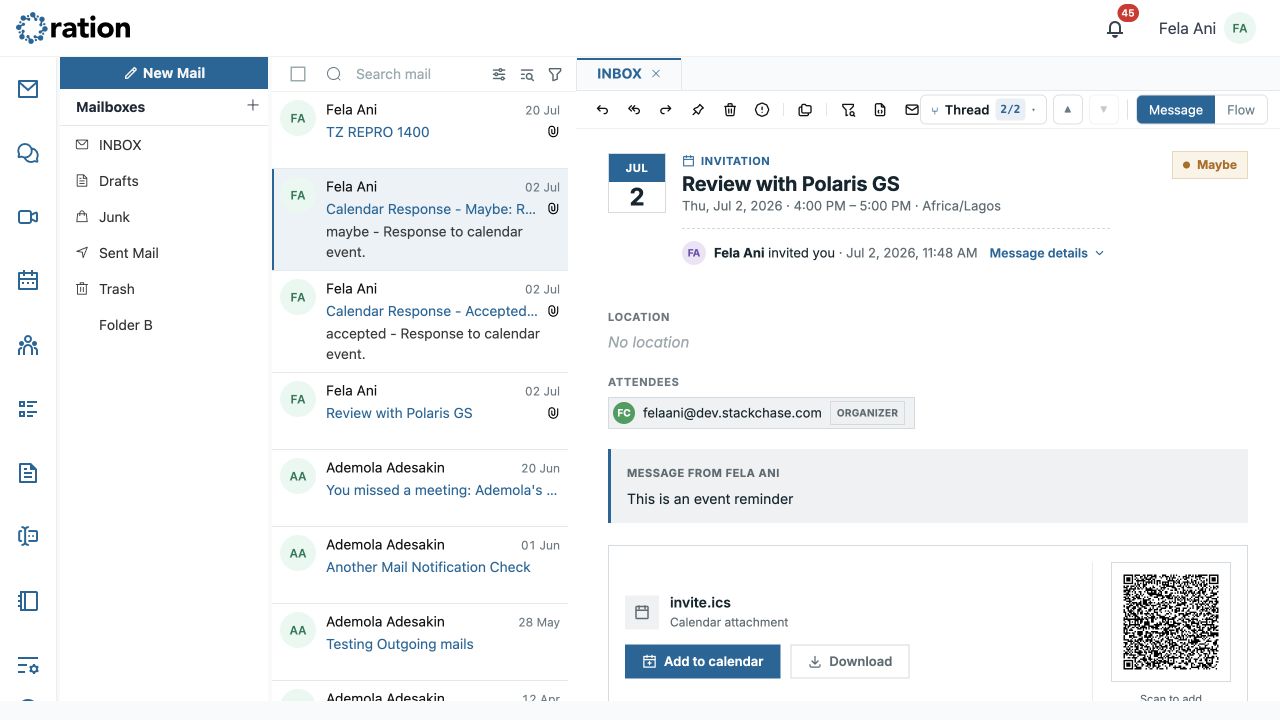
- Select In reply to … to open the parent message.
- Select a Replies pill to open a direct child; multiple children identify a fork.
- Open Thread map to see the complete tree, including forks, unread messages and messages sent by you.
- Use Previous in thread / Next in thread, or
j/kwhile not typing, to step through a thread. - Use the Message tab for a single email or the in-Mail Flow tab to follow the current path as cards. Each Flow card supports Open as message and Reply here.
Multiple tabs and pinned messages
| Tab | How it opens | Purpose |
|---|---|---|
| Mailbox | Select a mailbox | Normal list and reader context. |
| New Tab | Select New Mail | Independent composition. |
| Reply/Forward | Select a response action | Compose without losing source context. |
| Pinned | Select Pin Message | Keep a message open as a personal reference. |
To pin a message, open it and select Pin Message. Ration creates and activates a subject-labelled tab. Pins are personal, restored after refresh, and do not move, share, or retain the message. Close the tab when it is no longer needed.
Compose mail
- Select New Mail.
- Add recipients in To. Use Cc for visible copies and Bcc only where appropriate.
- Add a clear subject and compose in the Rich Text Editor.
- Attach approved files and choose the appropriate signature.
- Check recipients, subject, content, confidentiality and attachments; then select Send.
The editor supports font choice/size, bold, italic, underline, strikethrough, text and background colour, alignment, lists and indentation. The overflow menu exposes controls hidden at smaller widths.
Sending is an external action. Confirm To/Cc/Bcc, subject, signature and attachments immediately before you select Send.