Notes
Notes is Ration's connected writing workspace. Create a note for a decision, a meeting, research, or working context, then link it to the people and Ration items it relates to.
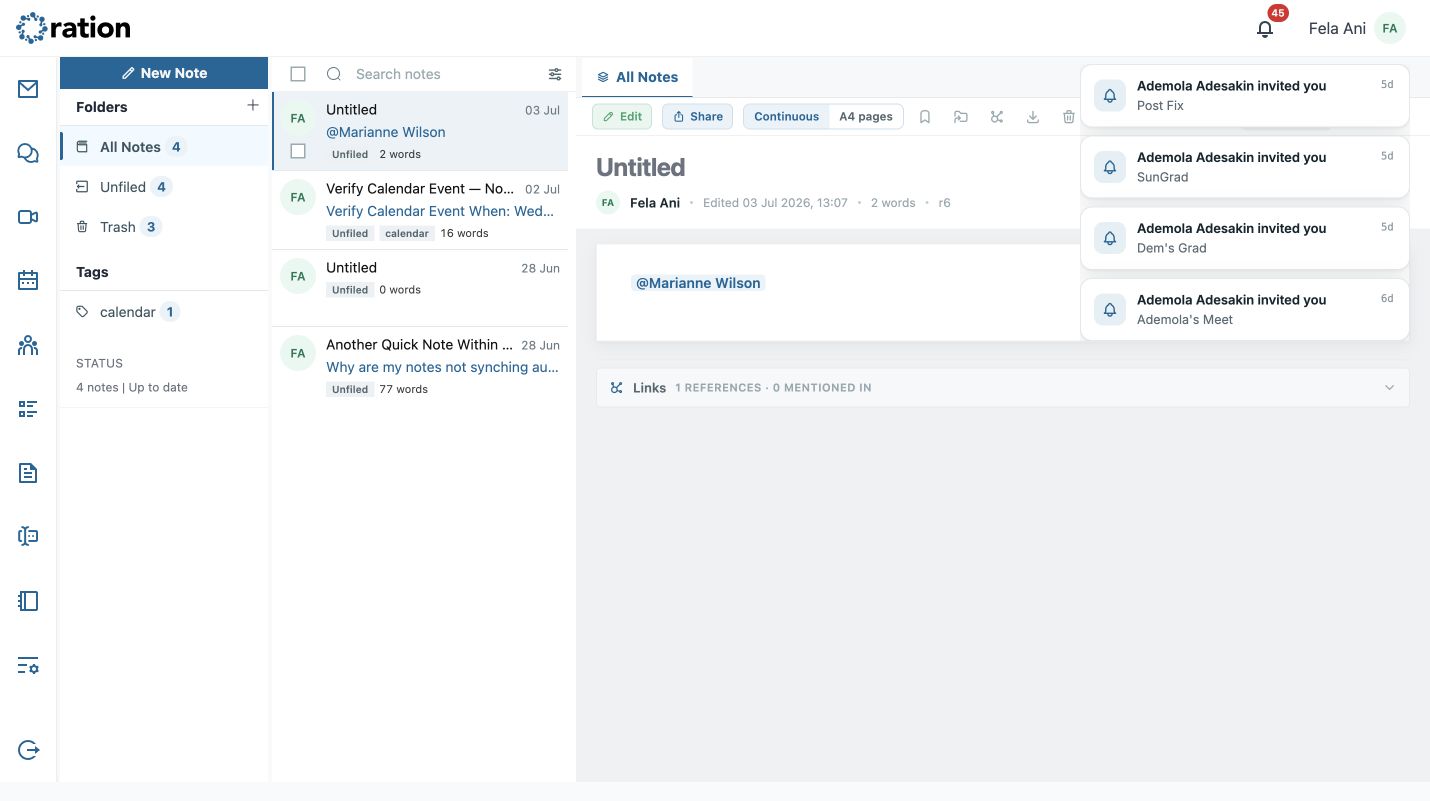
Navigate Notes
The large-screen workspace is organised into three areas:
- The far-left rail switches between Ration modules.
- The Folders sidebar is the starting point: choose All Notes, Unfiled, Trash, or a folder. The Tags area filters notes by tag, while Status reports the local sync state.
- The centre list shows the note owner, title, date, excerpt, folder, tags, and word count. Select a note to open it in the reading pane.
- The right pane contains the currently open note. Notes opened for editing appear in their own closable tab, so the list remains available while you work.
Create and edit a note
Select New Note. Ration opens a separate Untitled editor tab and starts a draft in the current folder (or Unfiled when viewing All Notes).
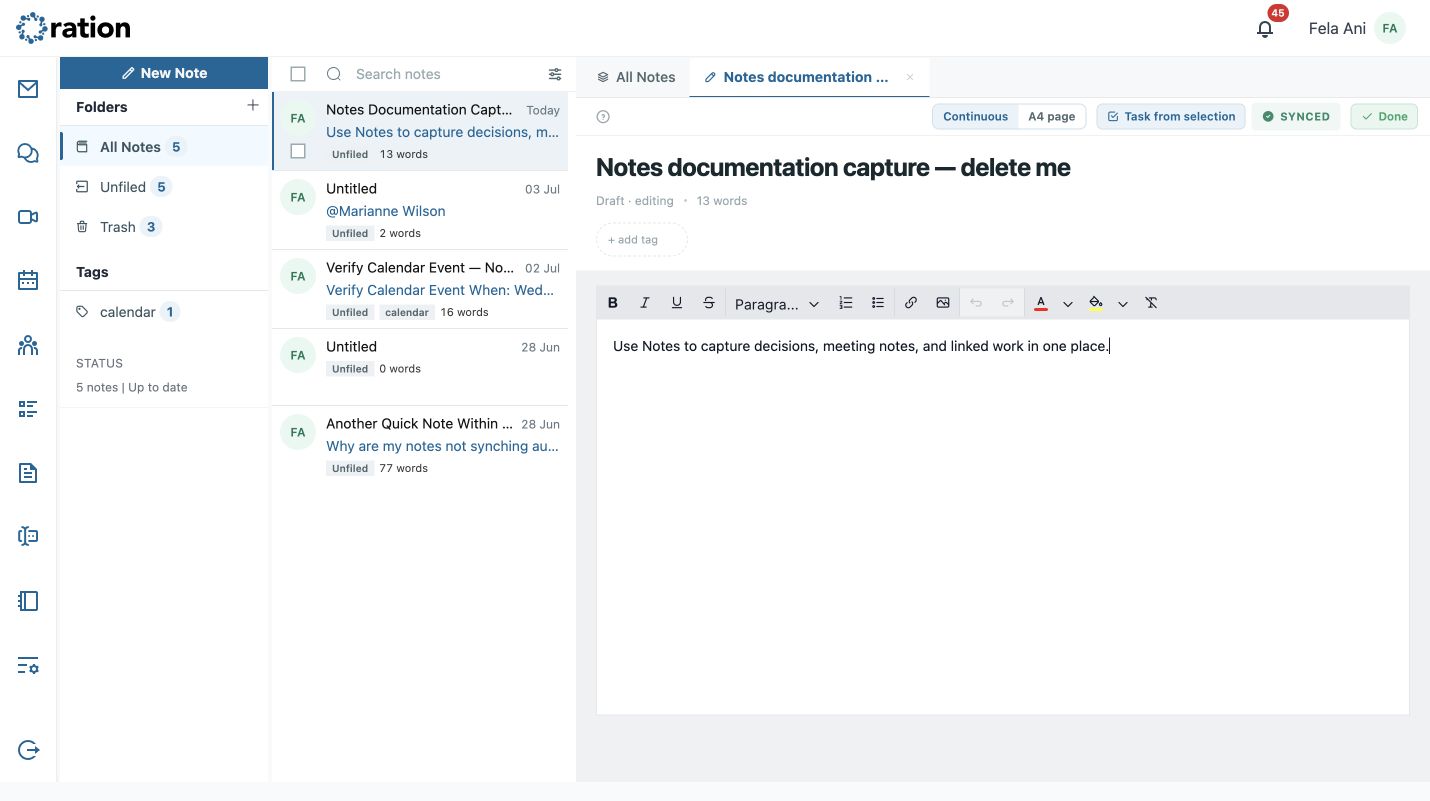
- Replace Untitled with a descriptive title.
- Write in the editor. Type @ to link a person or another note; type / for tasks, events, and other supported linked items.
- Add tags with the + add tag field. Tags become filters in the left sidebar.
- Select Continuous for a flowing editor, or A4 page for a paged writing layout.
- Highlight text and use Task from selection to turn that selected work into a task.
- Watch the sync status: SYNCED means the latest change has been saved; SAVING and OFFLINE indicate that Ration is still saving or cannot currently reach the service.
- Select Done to leave the editor and return to the note reader.
Choose a reading layout
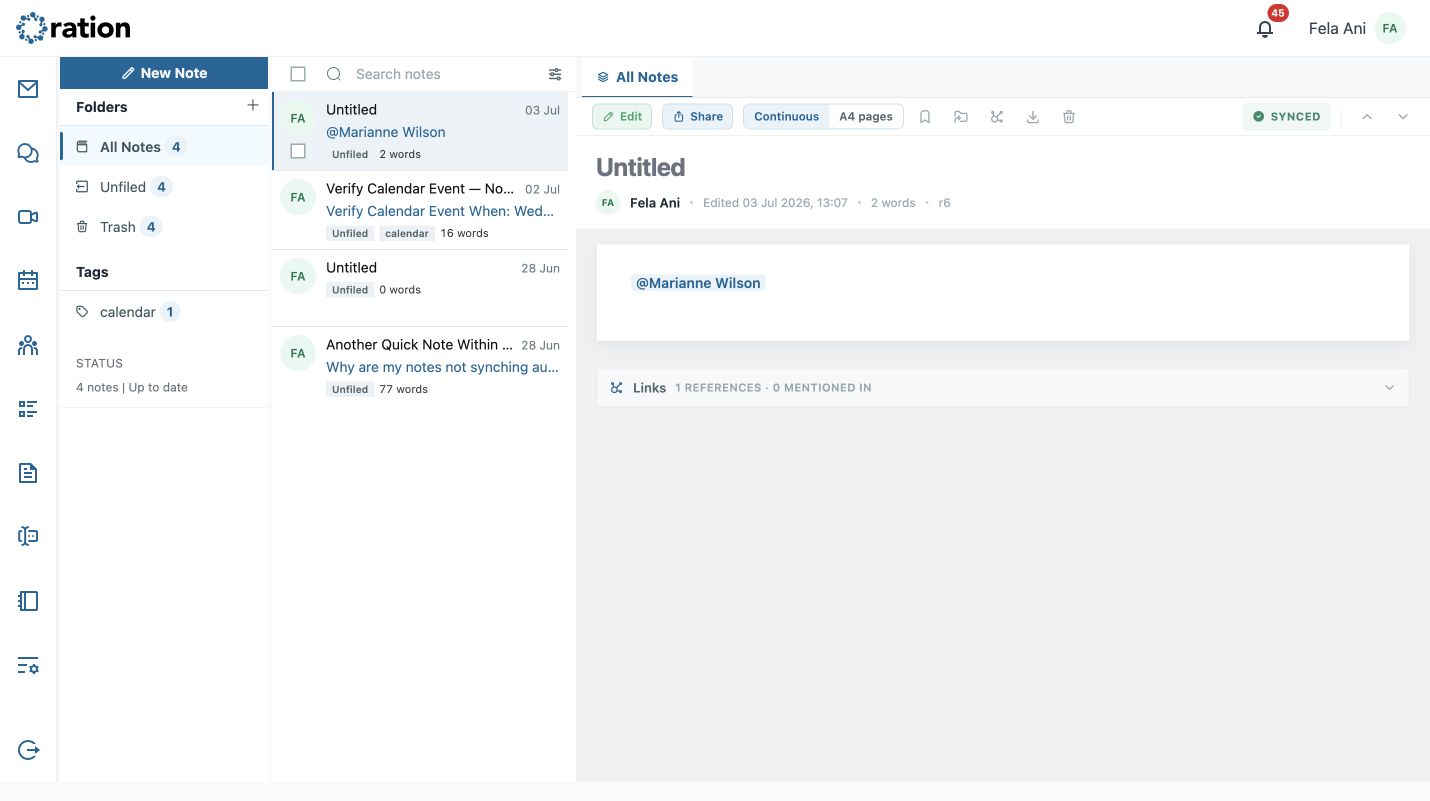
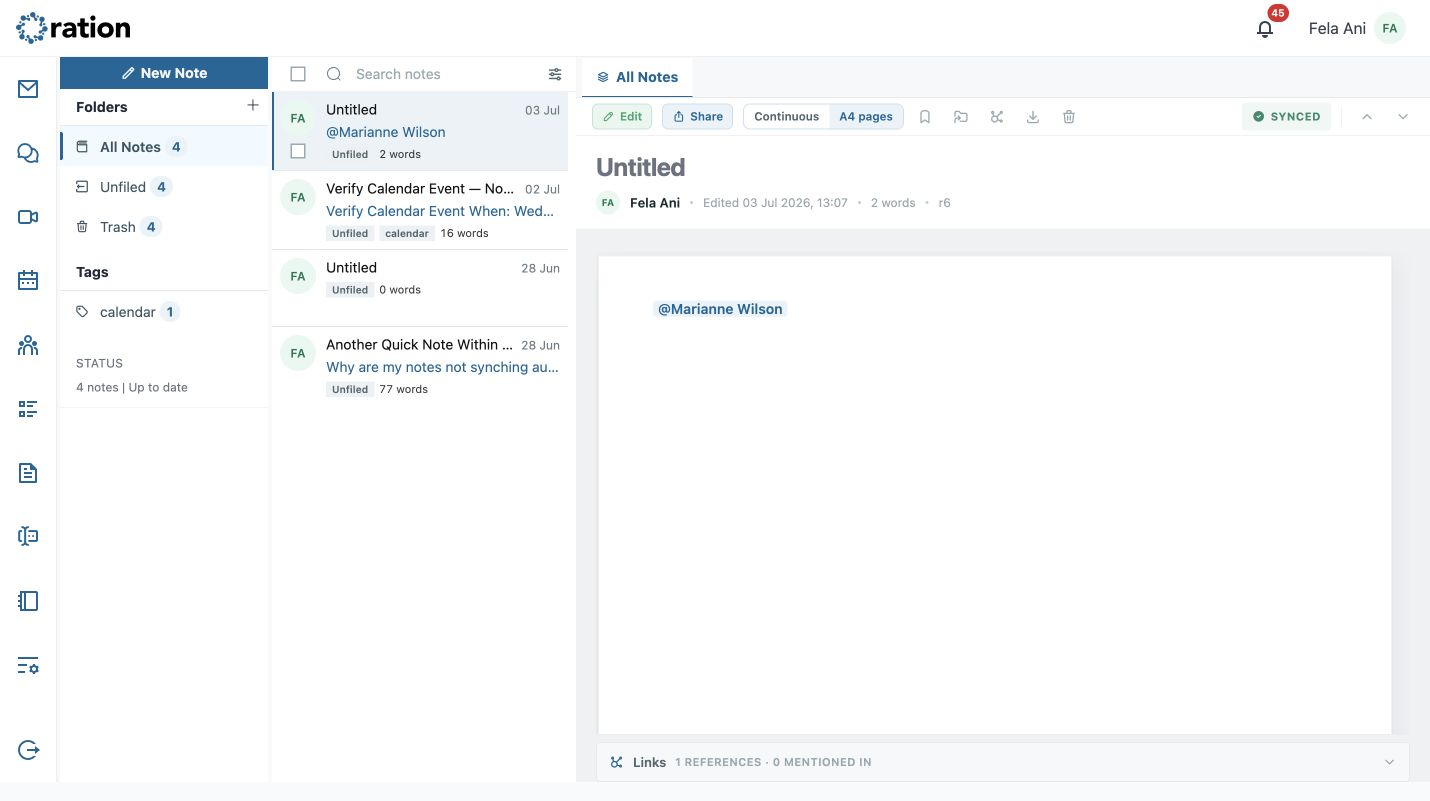
Use the layout toggle in the note toolbar to change only how the note is displayed:
- Continuous presents the note as one scrolling reading surface, which is useful for everyday working notes.
- A4 pages breaks the same content into print-style pages and adds page numbers, which is useful when reviewing a document in a page-based format.
Read and manage a saved note
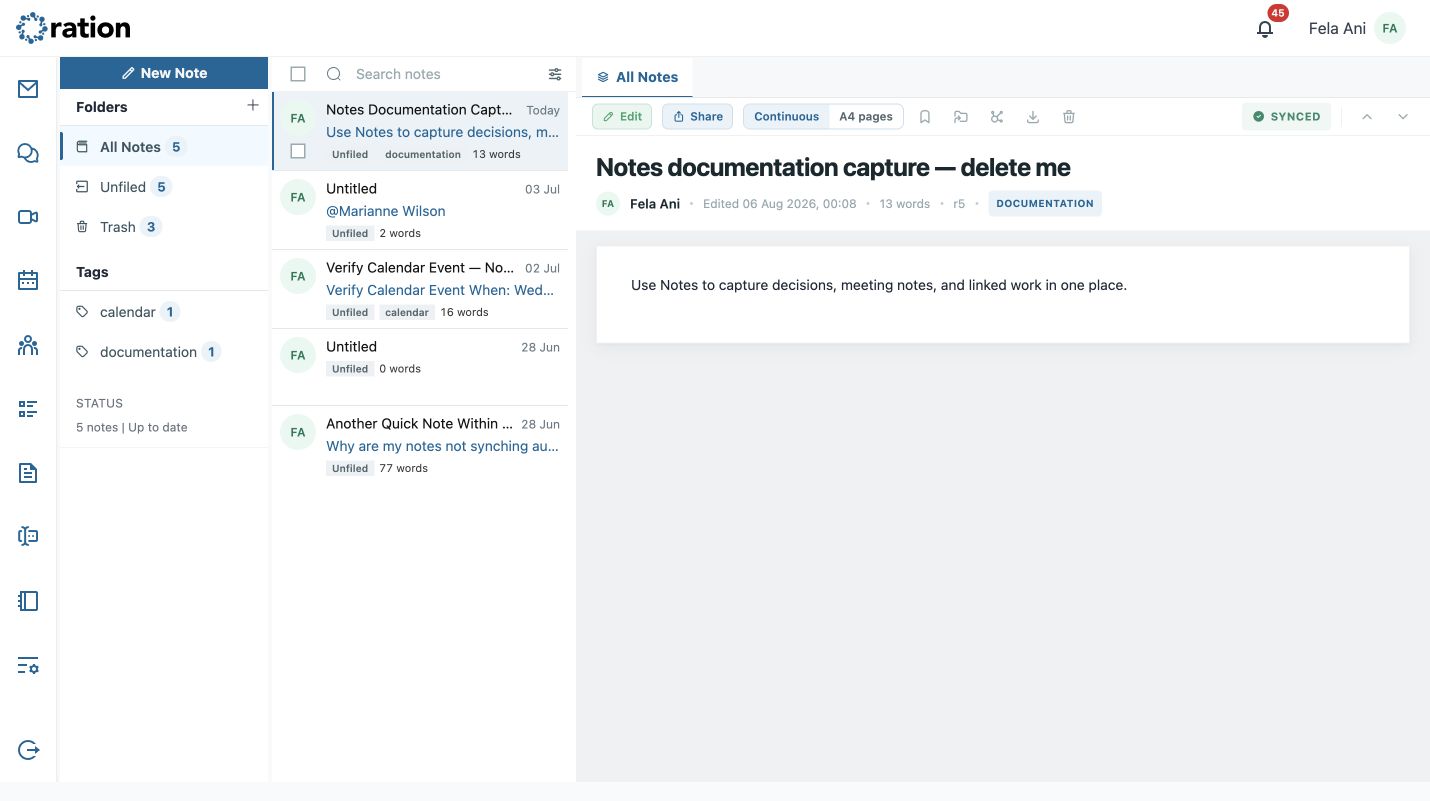
The reading toolbar provides the following controls:
| Control | What it does |
|---|---|
| Edit | Opens the note in its own editable tab. |
| Share | Lets the owner give other people access to the note. Shared notes can be view-only when the recipient is not allowed to edit. |
| Continuous / A4 pages | Changes the reading layout without changing the note itself. |
| Bookmark | Marks an owner’s note for quick retrieval. |
| Move to folder | Moves the note to Unfiled or a chosen folder. |
| Links | Shows items referenced by this note and notes or items that mention it. |
| Export | Downloads the note as Markdown (.md), HTML (.html), or PDF. |
| Delete | Moves an owner’s note to Trash. |
| Previous / Next note | Moves through notes in the current list. |
The note header also shows the author, last edited date, word count, revision number, and tags. Use this information to confirm that you are reading the intended version.
Organise folders and recover deleted notes
Use the folder control beside Folders to create a folder, then select it to work within that collection. Folder actions let you rename or delete a custom folder. Before deleting a folder, move its notes to another folder or back to Unfiled.
Deleting a note is recoverable: it goes to Trash first. Open Trash, select the note, and choose Restore to return it to Notes. Choose Delete forever only when the note is no longer needed; that action permanently removes it.
Use @ links and the Links panel for context that should travel with the note—for example, the meeting, task, event, and people behind a decision. This makes the note easier to find and understand later.