Meets
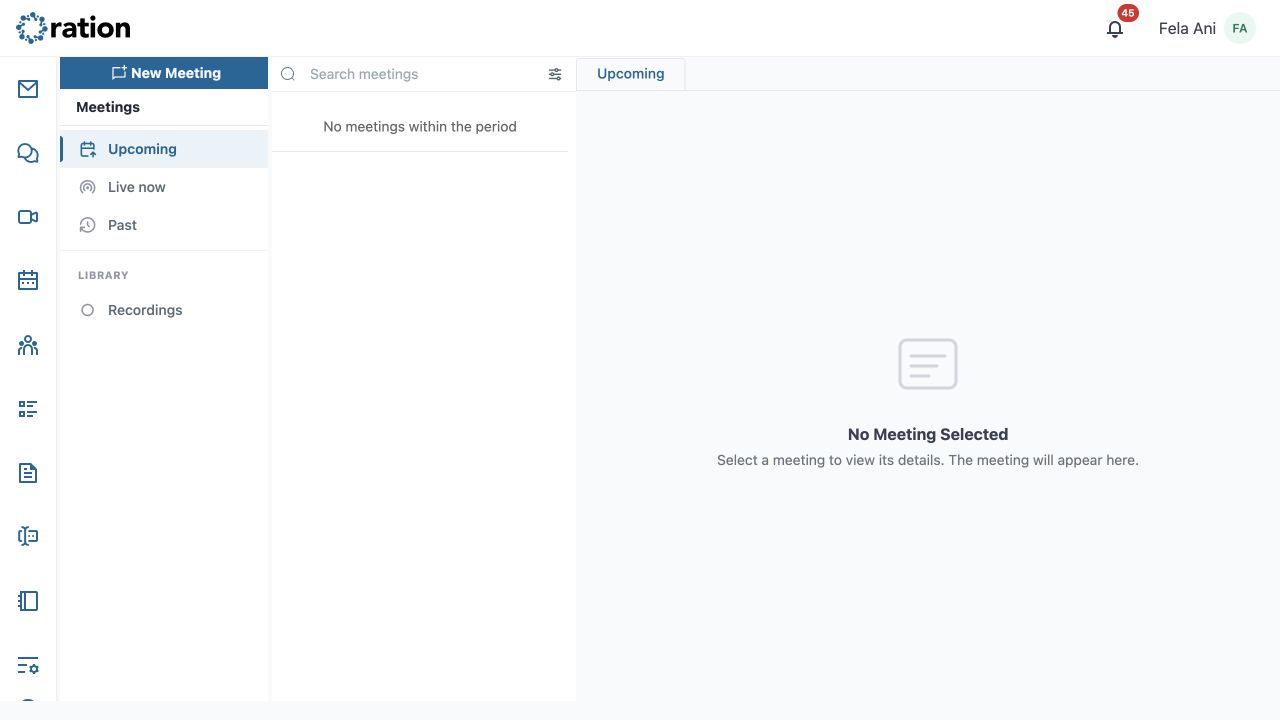
Meets is Ration's dedicated meeting workspace. It separates upcoming, live, past, library, and recording views so you can plan and find meetings without leaving Ration.
Find meetings
Use the left-side meeting views to change the current list:
- Upcoming — scheduled meetings in the current period.
- Live now — meetings that are active now.
- Past — completed meetings, including their outcome and duration where available.
- Library — meeting resources available to you.
- Recordings — recorded meeting material available to you.
Use Search meetings to find a meeting in the active view. Filter and sort narrows or reorders the list. Select a meeting to open its detail pane; it opens alongside the list rather than taking you away from it.
Create a meeting
Select New Meeting. Ration opens a closable New meeting tab and takes you through three steps.
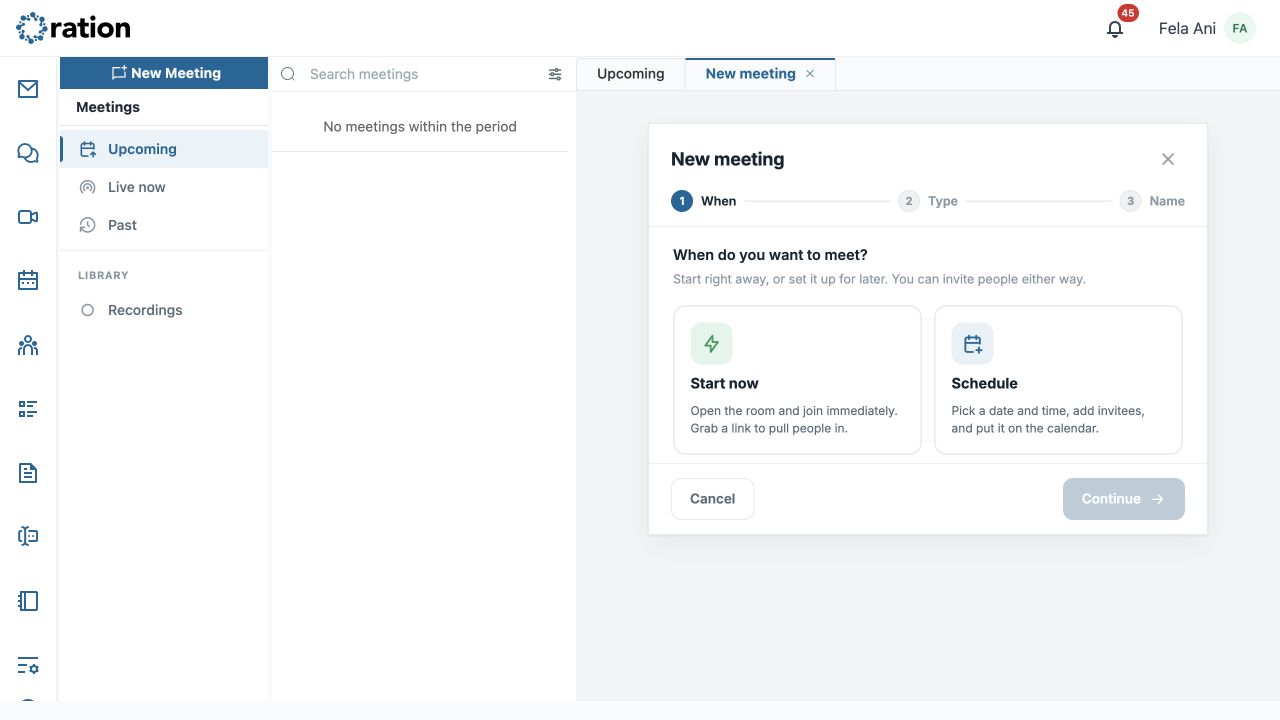
1. Choose when
- Start now creates an immediate room and takes you into it. Use it for an ad-hoc meeting; it is an external action because it opens a live room and can notify invitees.
- Schedule lets you configure a future meeting before it is placed in the list and calendar.
Select Continue after choosing one, or Cancel / Close to abandon the draft.
2. Choose the meeting type
| Type | Intended use | Publishing model |
|---|---|---|
| Interactive | Working sessions where everyone may participate. | All participants can publish audio, video, and screen sharing. |
| Livestream | Presenter-led sessions for a larger audience. | Presenters publish; the audience watches and can raise a hand to join the stage. |
Ration states that the type cannot be changed once the meeting starts. Use Back to revise the previous choice.
3. Add details
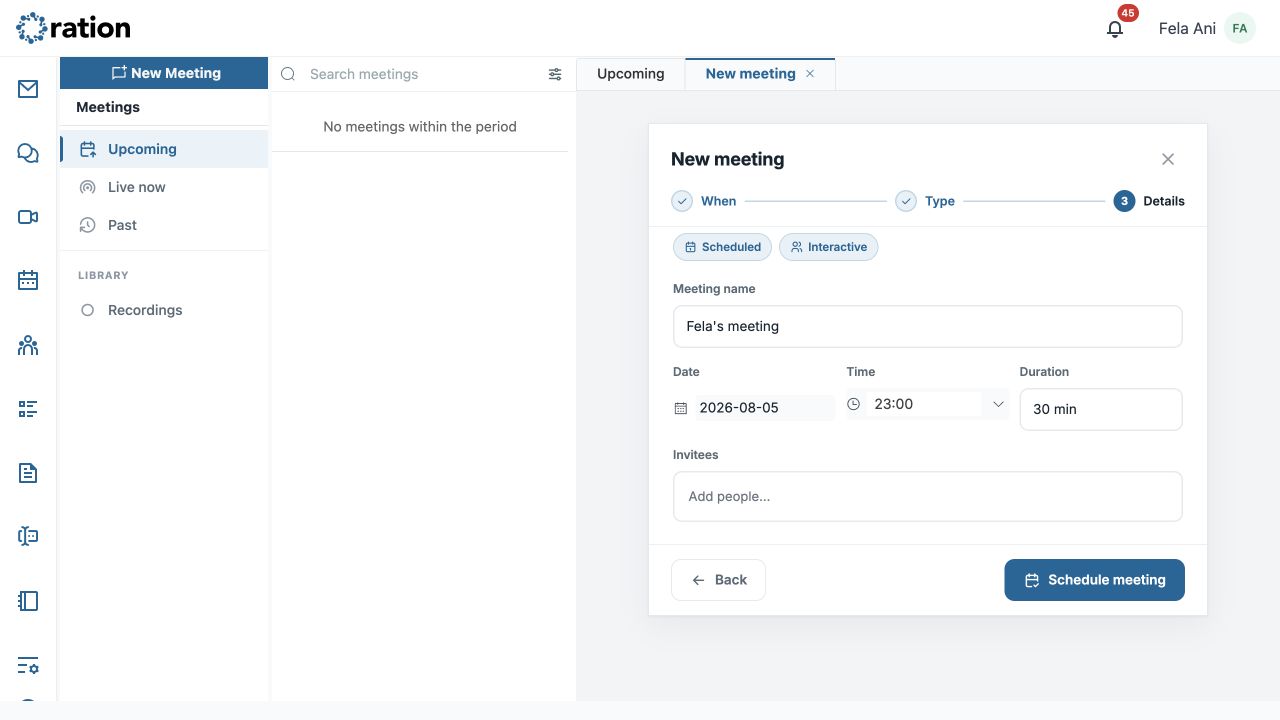
For a scheduled meeting, complete:
- Meeting name.
- Date and Time.
- Duration — choose from the offered options, such as 15 minutes, 30 minutes, 45 minutes, or 1 hour.
- Invitees — add the people who should receive access.
- Select Schedule meeting only after confirming the time, type, and attendee list.
Scheduling creates a meeting and can notify invitees. Starting immediately opens a live room. Confirm the meeting type, time zone, title, attendees, and intended audience before selecting the final action.
Work in an active meeting
An immediate or scheduled meeting opens in a dedicated Ration meeting tab. The live room keeps the participant list and chat on the left, the active video area in the centre, and meeting actions along the bottom.
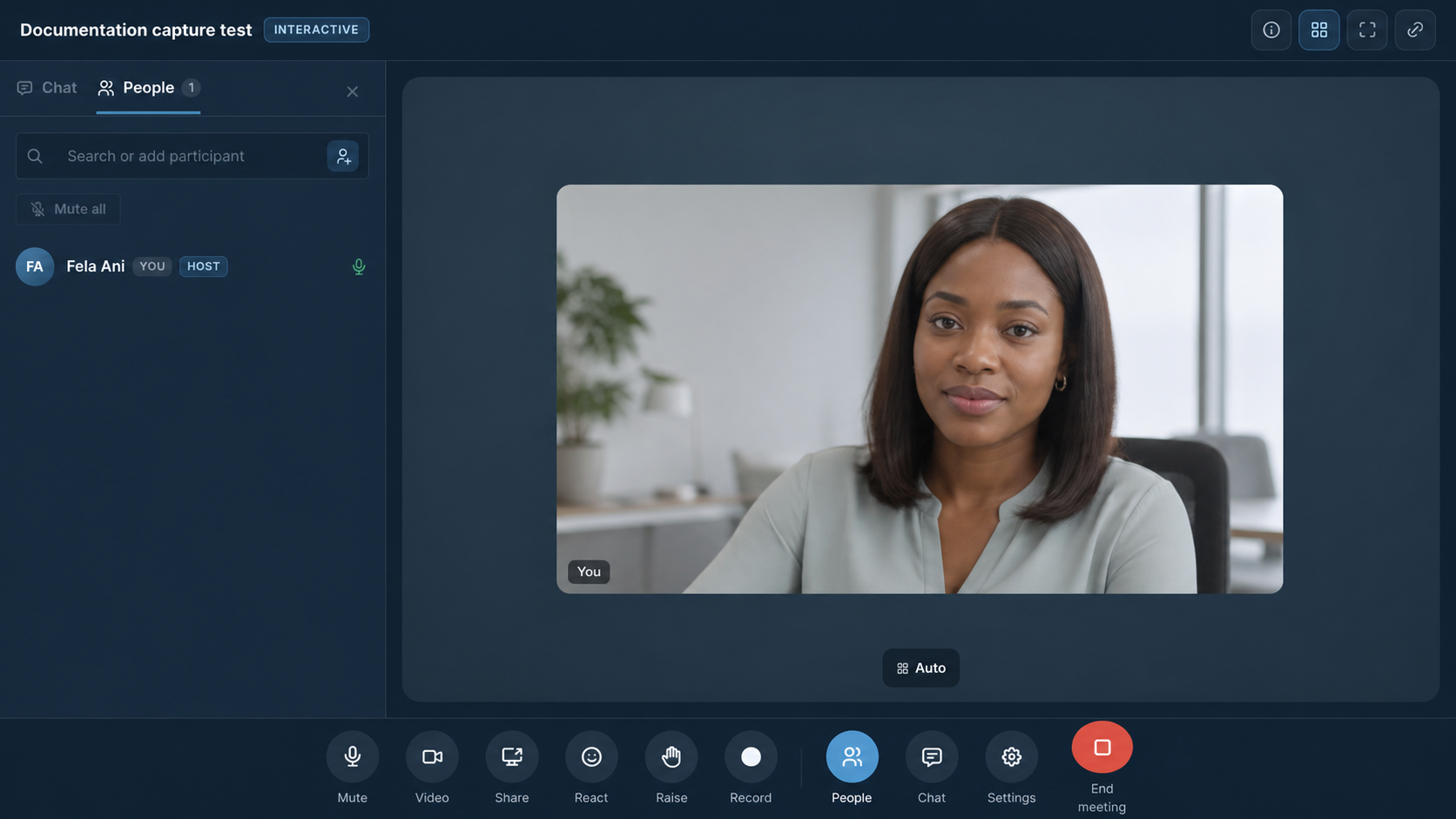
This is a real Ration live-room capture. Only the camera video tile has been replaced with an AI-generated photorealistic participant image; the Ration interface and its controls are unaltered.
Use the room controls
- People switches the left panel to the participant list. It shows the current participant count, attendee role badges such as Host, and each person’s microphone state. Use Search or add participant to invite someone; Mute all becomes available when it applies to the room and your role.
- Chat switches that same panel to the conversation. With no activity, it shows No messages yet; enter text in Message everyone… and select the send icon to post it to everyone in the meeting.
- Mute changes to Unmute when your microphone is off. Select it again to restore your audio; always confirm this label before speaking.
- Video turns your camera feed on or off. When video is off, the camera control displays a red disabled state and the live tile no longer shows your camera image.
- Share starts the screen-share flow. In the browser prompt, choose the window, tab, or display deliberately; stop sharing from the meeting control when you are finished.
- React posts a quick reaction in the room. The selected reaction appears momentarily over the video area, so use it for lightweight acknowledgement rather than a message requiring follow-up.
- Raise marks that you want to speak and adds a numeric indicator to the control while your hand is raised. Lower it again once you have had your turn.
- Record changes to Stop while recording is active. Starting a recording is an external action: obtain the required participant notice or consent first, and select Stop when recording is complete.
- Settings is the entry point for the room’s available device and meeting preferences. Check the selected microphone, camera, and speaker there before a critical meeting.
- The four top-right icon controls provide room information, layout selection (the current layout is labelled Auto), full-screen mode, and the room link. Use the link control to copy the meeting URL only through an approved sharing channel.
- End meeting ends the live session for the room. Use it only when the session is complete.
Past meetings and outcomes
The Past view shows the meeting name, owner/organiser initials, date, and a concise result such as Video call ended, Video call failed, a duration, or an invitation activity entry. Use this view to distinguish completed discussions from meetings that require follow-up or a retry.
Review a completed meeting
Select a meeting in Past to open its detail pane.
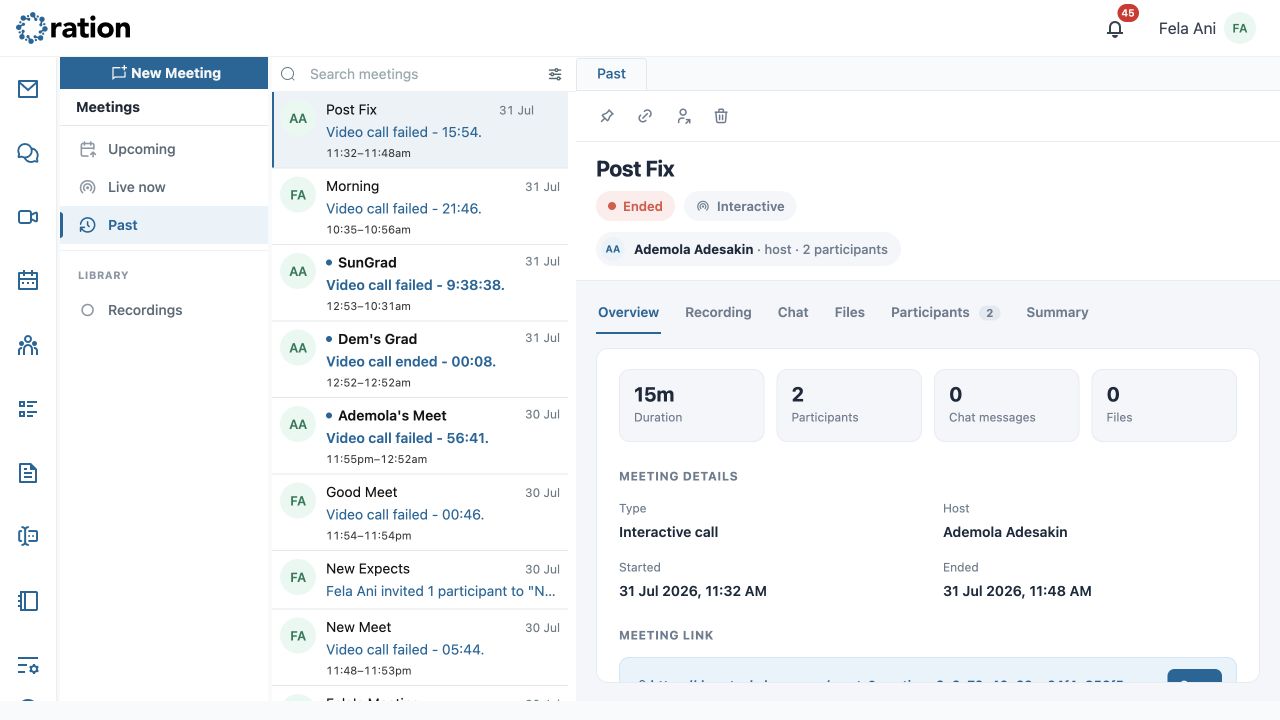
The detail pane provides:
- Overview — meeting status, type, host, duration, participant count, message count, and file count.
- Recording, Chat, Files, and Participants sections — use these to review material made available for that meeting.
- Meeting details — the meeting type, host, actual start/end time, link, and description.
- Copy — copies the displayed meeting link for sharing through an approved channel.
Coverage note
This guide currently covers the verified Meets workspace, creation wizard, active room, and completed-meeting detail view. Library items and recording playback will be documented with their live screens in the next Meets pass.