Chat
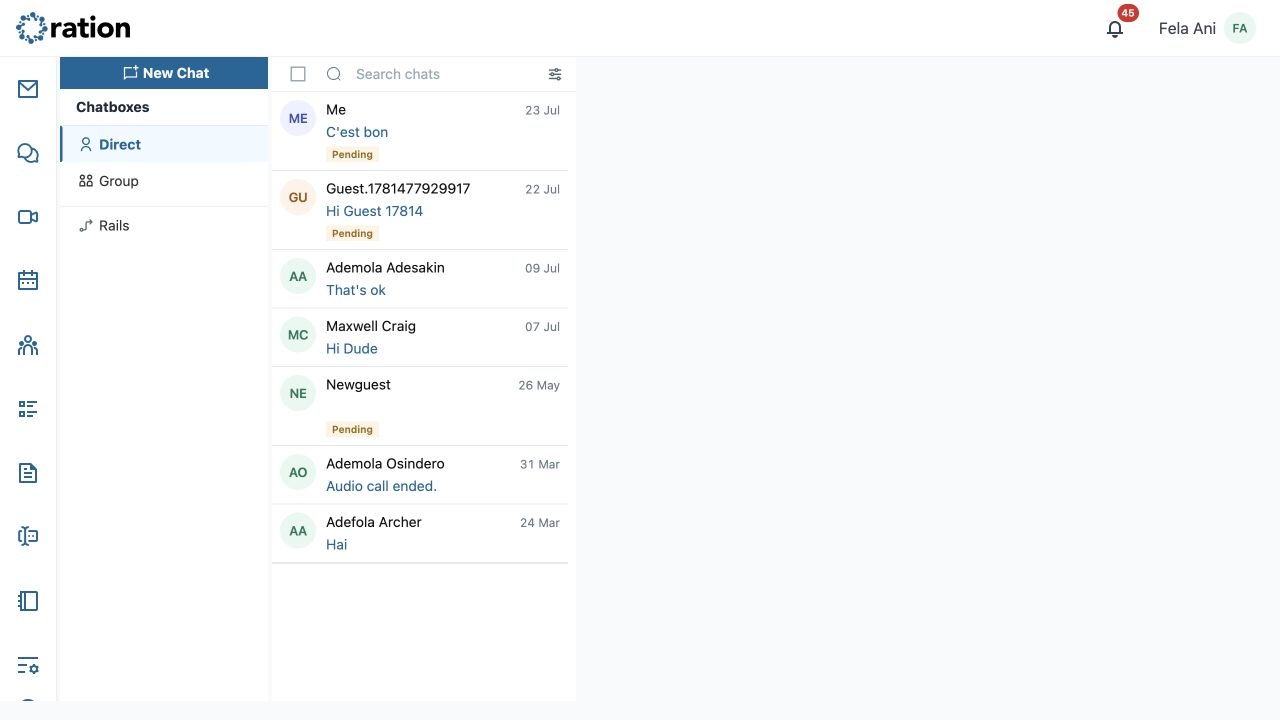
Chat brings direct messages, group conversations, Rails, calls and message follow-up into one workspace. Select Chats from the Ration navigation, then choose a chatbox on the left and a conversation in the middle list.
Know the workspace
| Area | What it does |
|---|---|
| Chatboxes | Switch between Direct, Group, and Rails. |
| Conversation list | Search, filter, open, or select conversations for a bulk action. |
| Conversation pane | Read, send, call, manage participants, and use message actions. |
| Tabs | Keep the Direct and Group views open while you work; a new-chat tab is closable. |
Use Search chats to find a conversation. Filter and sort changes the list view. Select the square beside a conversation to enter selection mode, then use Mark selected read, Delete selected conversations, or Cancel. Deleting a conversation is a destructive action.
Start a direct or group chat
- Select New Chat. Ration opens a separate New chat tab rather than a pop-up.
- Search for a colleague, or enter a full email address to invite an external guest.
- Select one person for a direct message. Select two or more people for a group; an optional group-name field appears.
- Review selected people, then select Start chat.
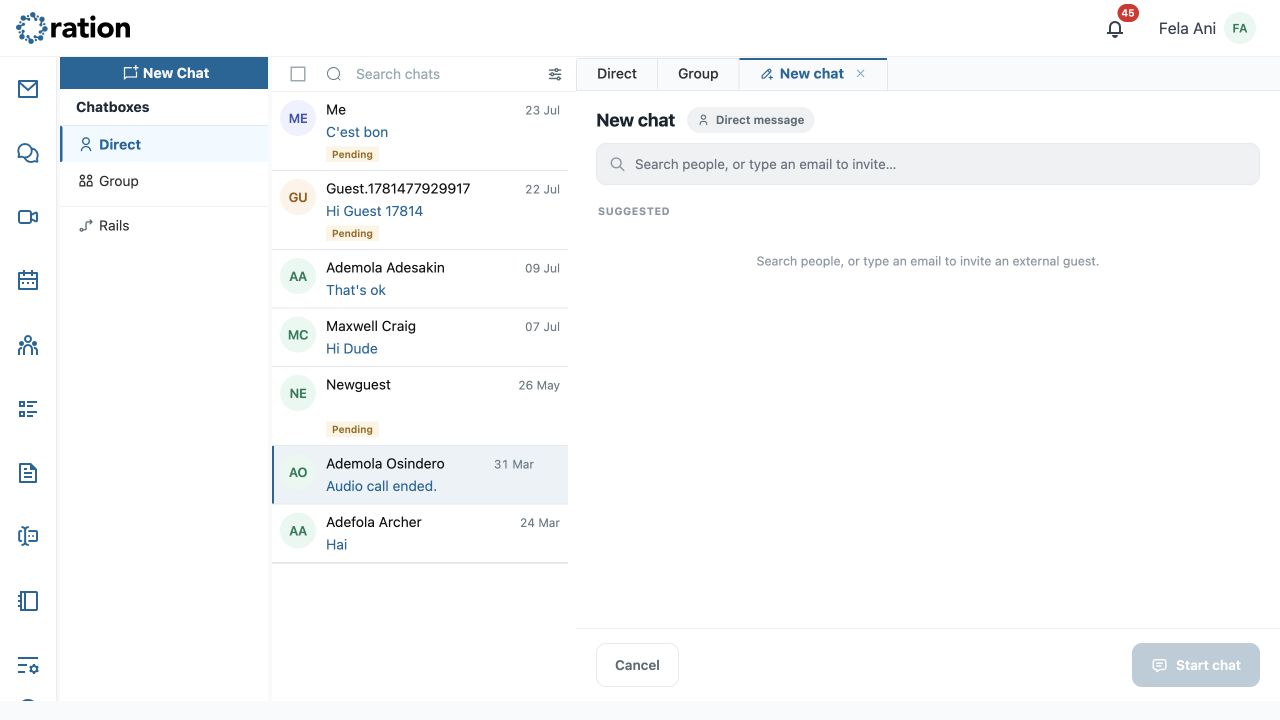
When external guests are included, Ration identifies them as external and presents access controls. Confirm the guest list, expiry and permitted uses before starting: guests can see everything shared in that chat.
Direct and group conversations
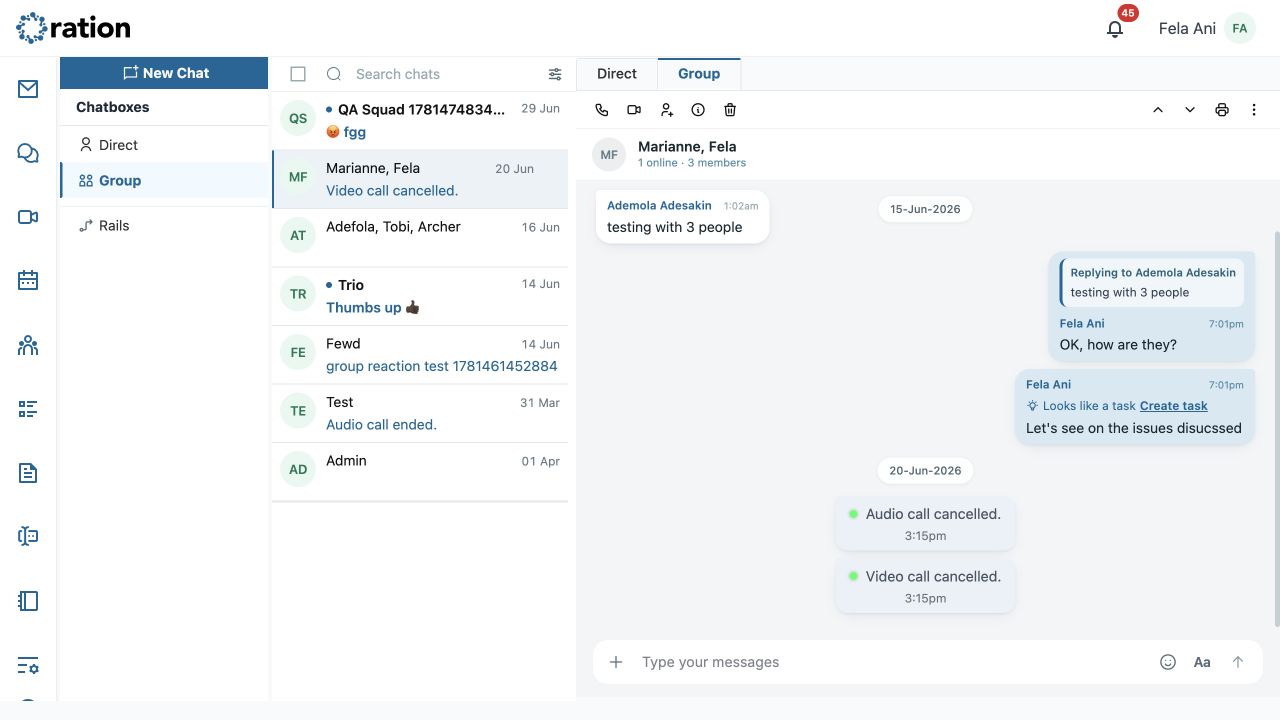
Select Direct or Group in the content tabs, then select a conversation. The header shows the participant or group name and availability. In a group it also shows online and member counts.
Conversation header controls
The left-to-right controls are:
- Voice call — starts an audio call with the active conversation.
- Video call — starts a video call with the active conversation.
- Add members — available for groups.
- Conversation details — opens member and conversation information; it changes to Back to messages while details are open.
- Delete chat — removes the active chat after confirmation.
- Previous conversation and Next conversation — step through the current list without returning to it.
- Print conversation — prints the active conversation.
- More — in groups, exposes Edit members; meeting conversations also expose participant invitations and Copy Meeting Link.
Write and share
The composer supports Bold, Italic, Underline, text appearance, Attach, Emoji, the expandable Formatting toolbar, and Send. Add a file using Attach, or select + in the compact composer. Select Send only after checking text, intended audience and attachments.
Work with a message
Select the three-dot Message actions control beside a message.
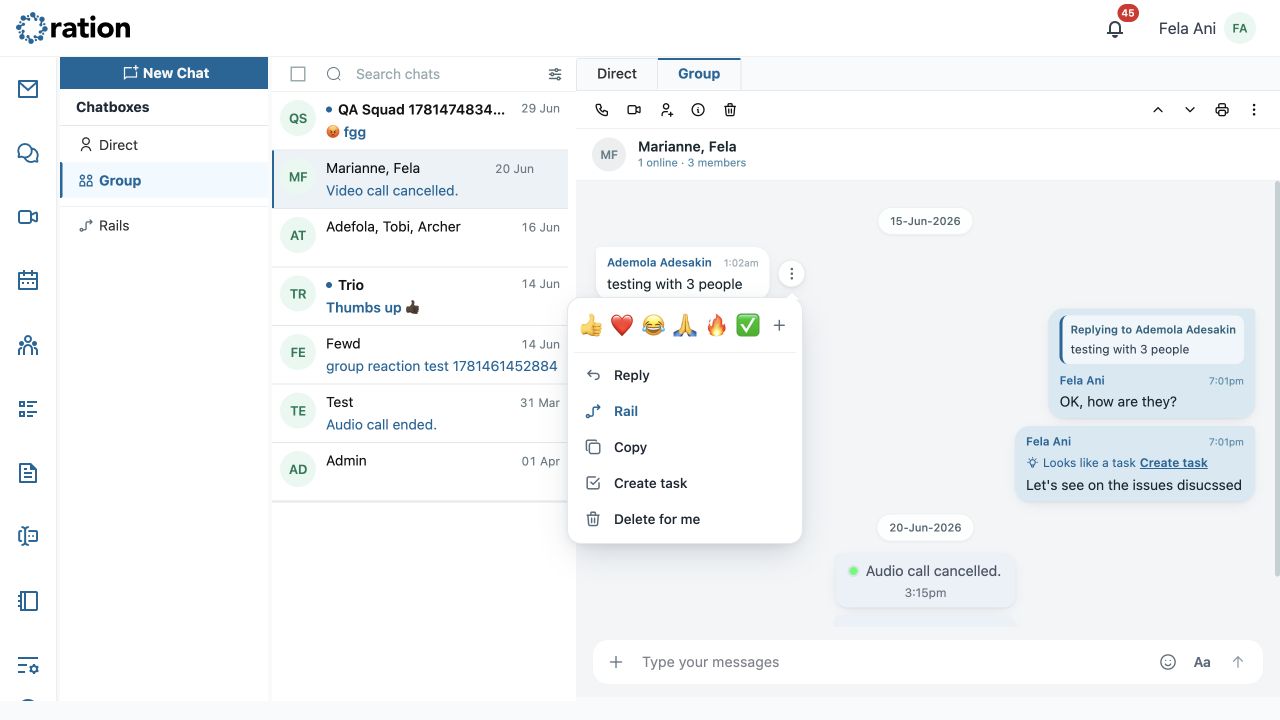
From here, you can:
- Add a quick reaction or choose More emoji.
- Reply, which places the source message above the composer for context.
- Create a Rail from the message to continue a focused side discussion.
- Copy the message.
- Create task from an actionable message.
- Delete for me to remove it from your own view.
- If you sent the message, use Delete for everyone only after reviewing its confirmation; it removes the message for all participants.
Message cards can also show a reply reference, file attachment, reaction, or an inline Create task affordance.
Rails
Rails are focused continuations created from a message. Choose Rails under Chatboxes to view them, then use Recent, Unread, or Hot to narrow the list.
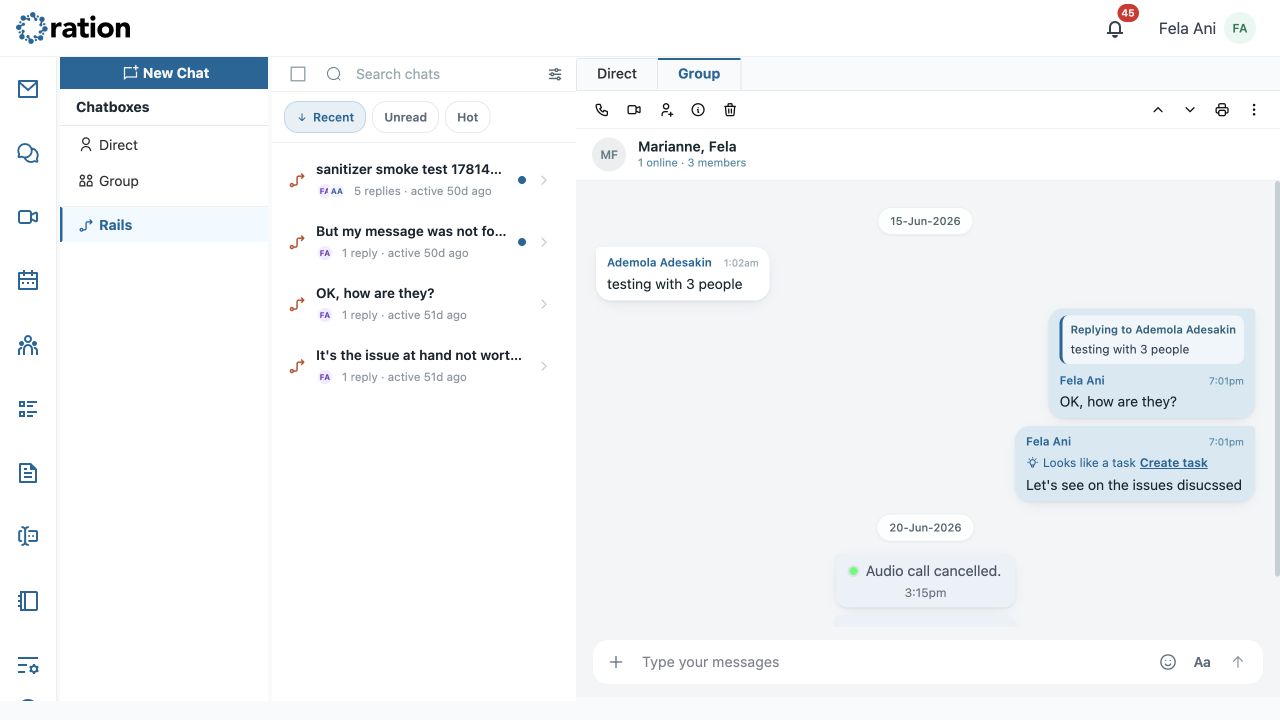
Each rail identifies its source message, participants, reply count and last activity. Open a rail to continue its specific discussion without losing the parent conversation.
Voice and video calls
Use the phone icon for an audio call or the camera icon for a video call. The verified call coverage currently shows the outgoing ringing panel only.
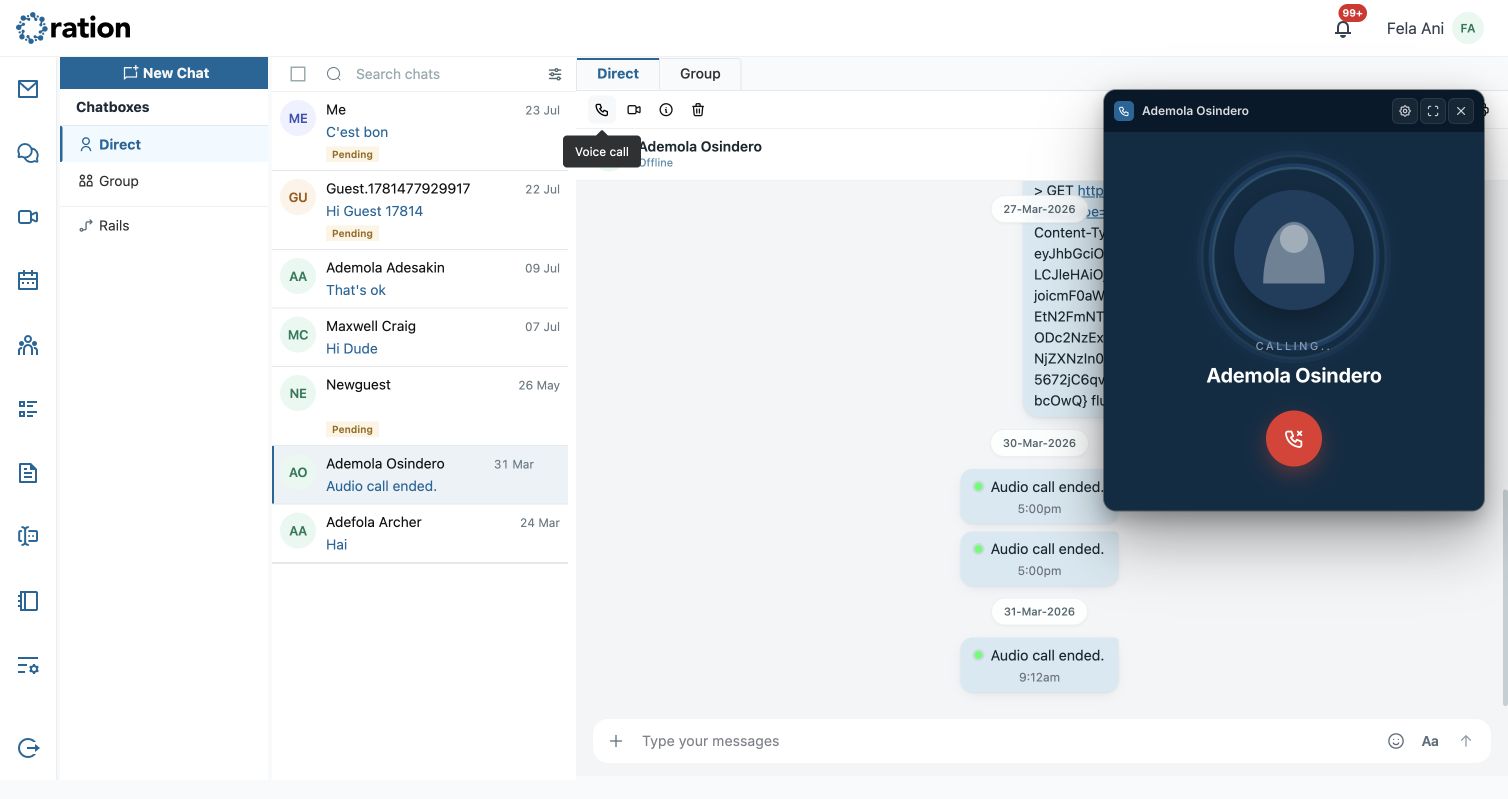
Starting a call notifies the participant or group. Confirm the intended conversation before selecting the phone or camera icon.