Contacts
Contacts is Ration's address-book workspace. Use it to organise people into address books, maintain their details, and exchange individual contact records through a QR code, download, share action, or CardDAV-compatible client.
Manage address books
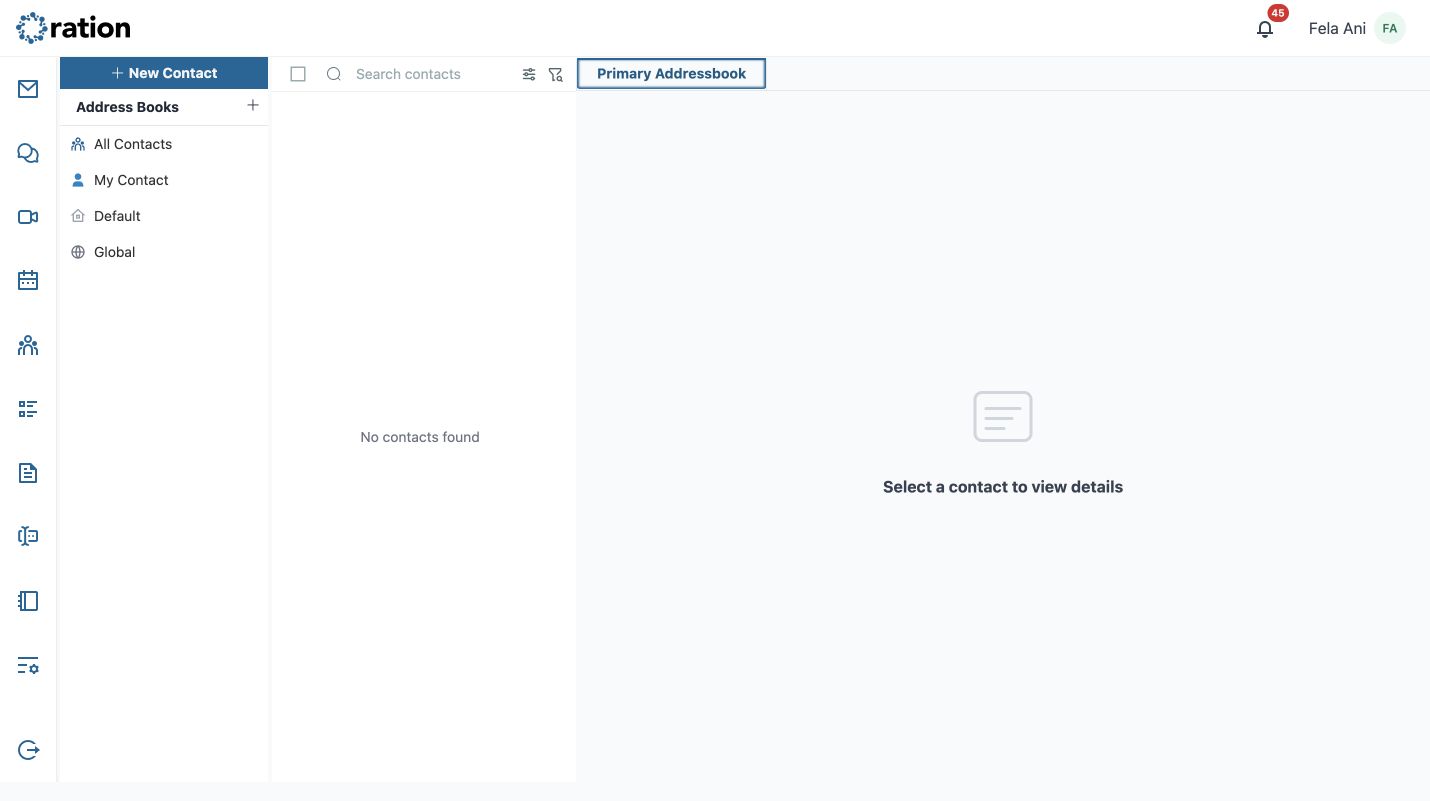
Start in the Address Books sidebar. It is the organising spine for Contacts: choose an address book first, then view, create, or move its contacts.
Create an address book
Select the + beside Address Books. Enter a short, distinctive address-book name—such as Clients or Project team—and select Create. The new address book becomes available in the sidebar, where selecting it makes it the current contact scope.
Rename or delete an address book
Hover over a user-managed address book to reveal its three-dots actions menu.
- Select Rename to enter a new name, then select Save. Use Cancel to preserve the current name.
- Select Delete to remove the address book. Before deleting, optionally select Move contacts, then choose another address book as the destination. Select Delete only after confirming the destination and impact.
Understand the built-in address books
| Address book | Purpose | What you can do |
|---|---|---|
| All Contacts | A system-generated combined view of contacts available to you across address books. It is not a separate address book. | Search and open contacts; select an individual writable address book before creating or moving a contact. |
| My Contact | Your own Ration profile represented as a contact. | Keep your personal contact information current. It cannot be moved into, or out of, another address book. |
| Default | Your primary personal address book. Ration creates it for each user when needed and uses it as the normal writable place for personal contacts. | Create and manage your contacts here. The default address book is protected from deletion. |
| Global | Your tenant's directory: active colleagues plus contacts that an administrator has made available globally. | Search, open, export, share, and pin contacts. Global directory contacts are read-only, so you cannot create, move, edit, or delete them from Contacts. |
| Fetched (when present) | Automatically collected recipient contacts used for autocomplete. | Use it to find previously encountered recipients. Do not use it as a manually curated address book or a move destination. |
The Default, Global, Fetched, and My Contact scopes are protected or restricted compared with an address book that you create yourself. Use a personal, user-created address book whenever you need full rename, move, or delete control.
Deleting an address book can remove its contents unless you move its contacts first. Confirm the destination before selecting Delete.
Navigate Contacts
The large desktop workspace has four areas:
- The far-left rail switches between Ration modules.
- The Address Books sidebar contains All Contacts, My Contact, Default, and Global. Select one to change the current contact scope. Use the + beside Address Books to add an address book.
- The middle column lists contacts in the selected scope. Use Search contacts and its adjacent filter controls to narrow a large list.
- The detail pane shows the selected contact. It initially asks you to select a contact when none is open.
Create a contact
Select New Contact. Ration opens a separate New Contact tab.
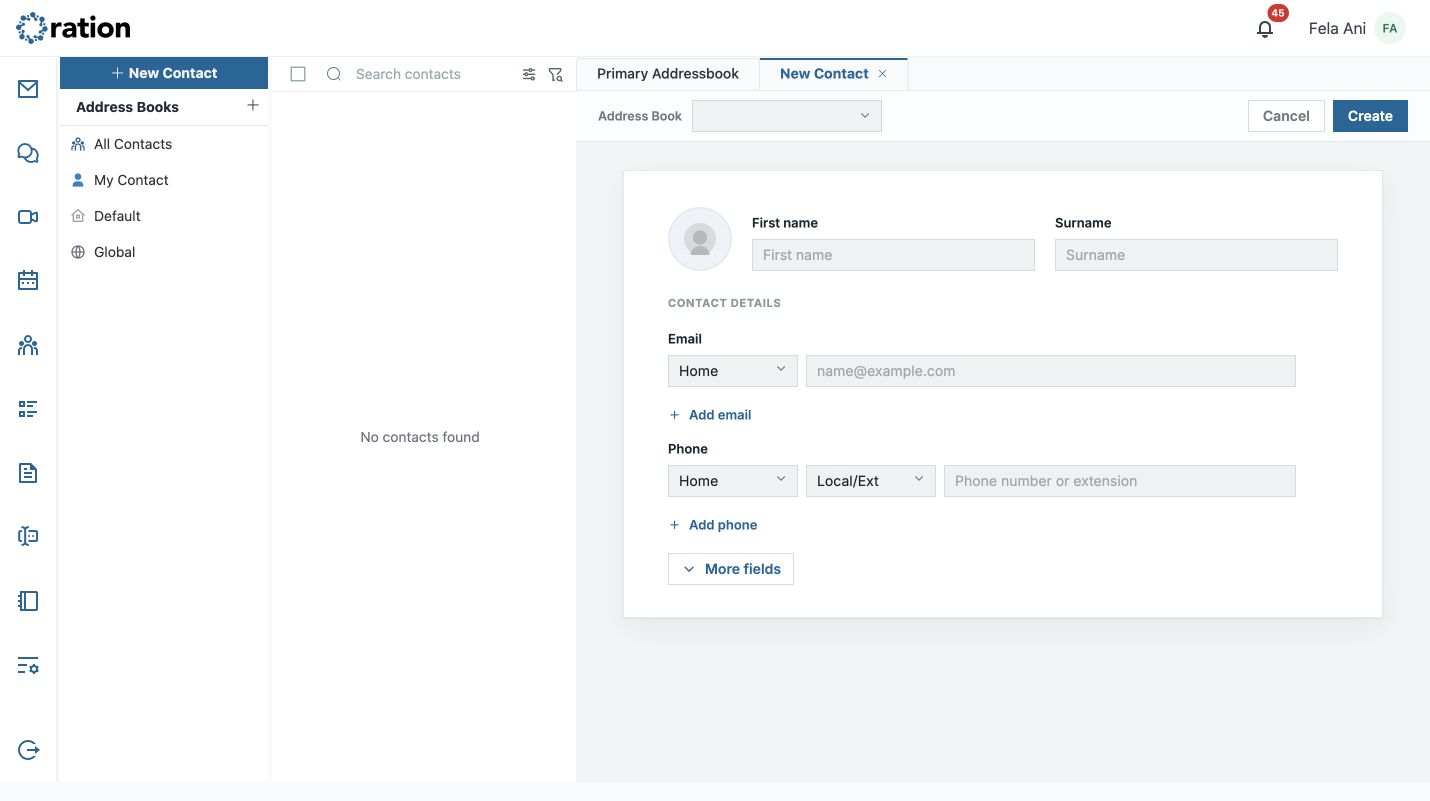
- Choose the target Address Book.
- Enter First name and Surname.
- Add an Email and select its type: Home, Work, or Other. Use Add email for another address.
- Add a Phone number. Choose a label, country or local/extension format, then use Add phone for another number.
- Select Create to save the contact, or Cancel to discard the unsaved record.
Select More fields to expand the record:
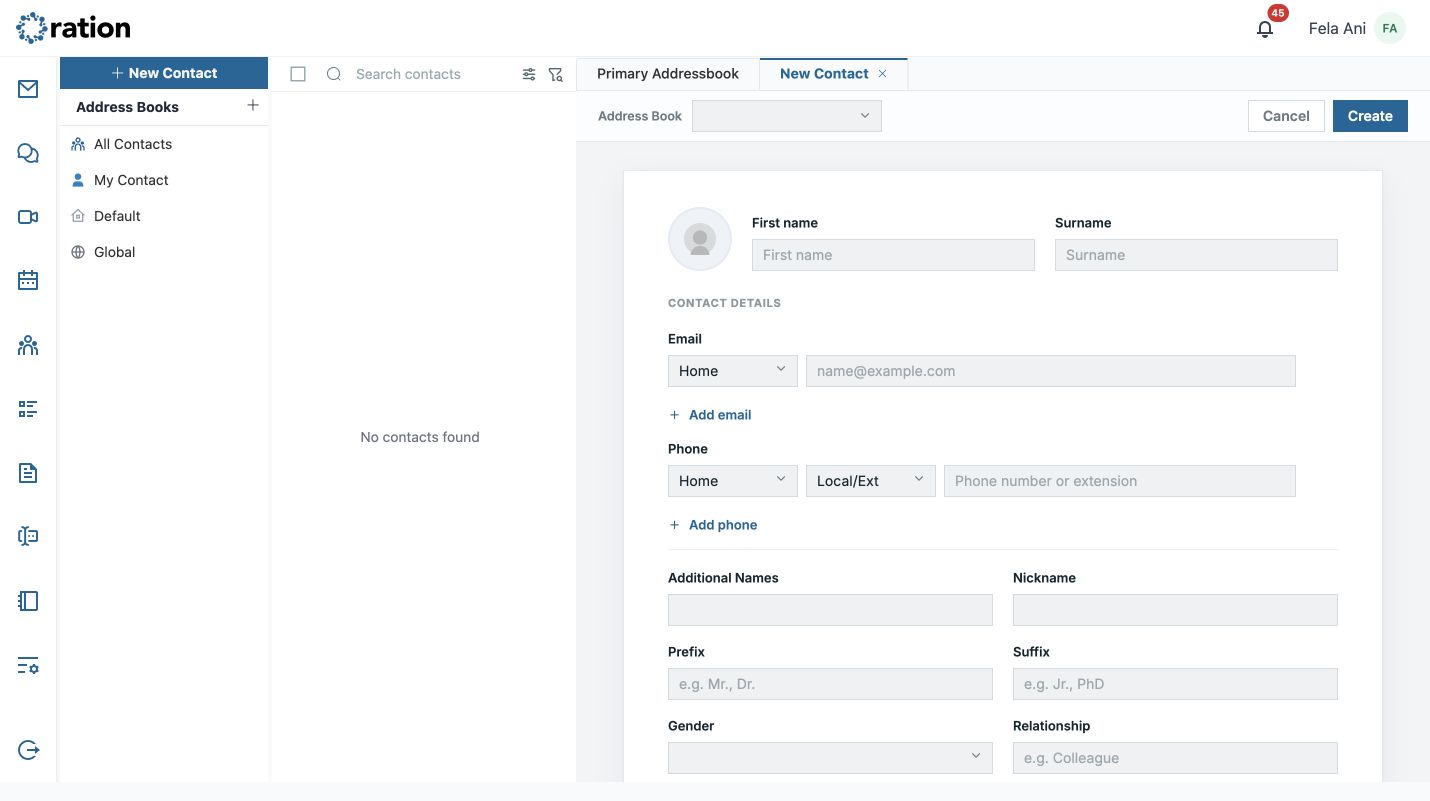
- Additional Names, Nickname, Prefix, and Suffix.
- Gender and Relationship.
- Organisation information such as Company, Department, and Job Title.
- Use All fields when you need the full available record; use Fewer fields to return to the compact form.
View and exchange a contact
Select a contact from the list to open its detail pane.
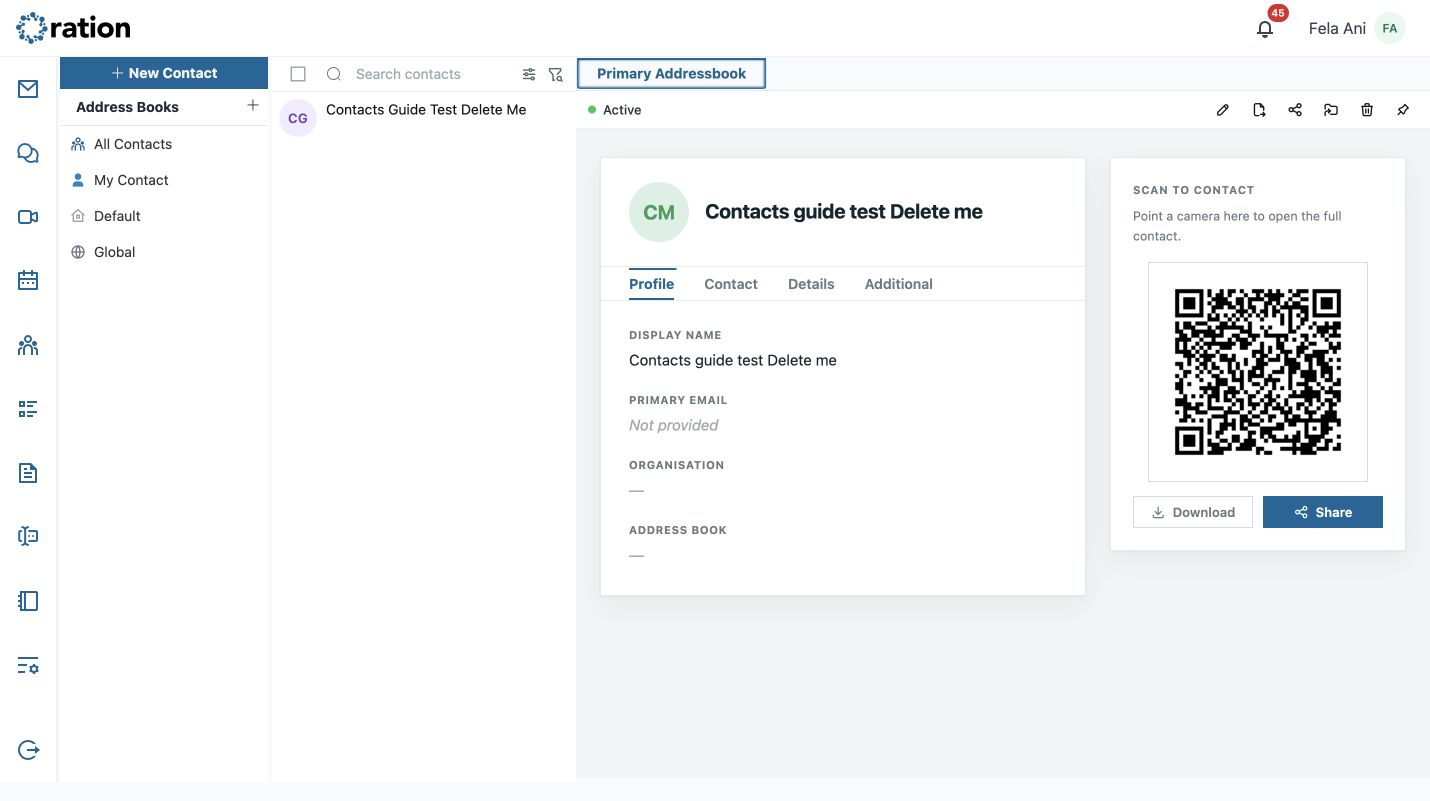
The detail pane separates information into Profile, Contact, Details, and Additional. It shows the contact's display name, primary email, organisation, address book, and all information stored for that person.
The companion panel provides an event-specific QR code under Scan to contact. Scan it to open the full contact on another device. Use Download to save a portable contact file and Share to send the record through an approved sharing channel.
Use the contact-detail tools
The detail toolbar provides these tools:
| Tool | What it does |
|---|---|
| Edit | Opens the contact editor for changes to names, contact methods, and additional fields. Select Save to keep changes. |
| Export vCard | Downloads the selected contact as a portable .vcf vCard file. |
| Share | Opens the available device sharing flow, or uses its copy/share fallback. |
| Move | Moves the contact to another address book. Confirm the target before completing the move. |
| Delete | Opens the contact-deletion confirmation. Use it only when the record should be removed. |
| Pin | Keeps the contact open in a persistent, closable tab so you can work elsewhere in Ration without losing the detail view. |
Directory or otherwise read-only contacts retain the safe exchange tools—such as export, share, and pin—but do not expose editing, moving, or deletion.
Edit, move, or delete a contact
Select the contact, then use the toolbar:
- Select Edit, update the relevant fields, and select Save. Use Cancel to abandon the changes.
- Select Move, choose the destination address book, and confirm the move.
- Select Delete and confirm only when the contact should be permanently removed.
Moving or deleting a contact changes the selected address book. Export a vCard first when you need a recoverable copy outside Ration.
CardDAV compatibility
Ration supports the CardDAV address-book standard, allowing compatible contact clients to discover and synchronise Ration address books using your organisation's approved connection settings. The standard discovery path is:
https://app.ration.works/.well-known/carddav
For Ration-hosted accounts, use the managed discovery address above. If your organisation runs Ration on-premises or through an MSP, use the CardDAV address and authentication requirements supplied by that provider.
Use CardDAV for ongoing address-book synchronisation; use the individual contact's Download action when you only need to transfer one contact.
Coverage note
This guide covers the verified large-screen workspace, address-book creation and CRUD, contact creation, expanded fields, detail tools, QR/download/share access, CardDAV interoperability, and contact editing/moving/deletion. Address-book sharing rules and advanced search will be documented from their verified screens in the next pass.