Calendar
Calendar is Ration's event-planning workspace. Use it to browse your schedule, create a personal or shared event, invite attendees, and control repetition, reminders, location, and time zone.
Manage calendars
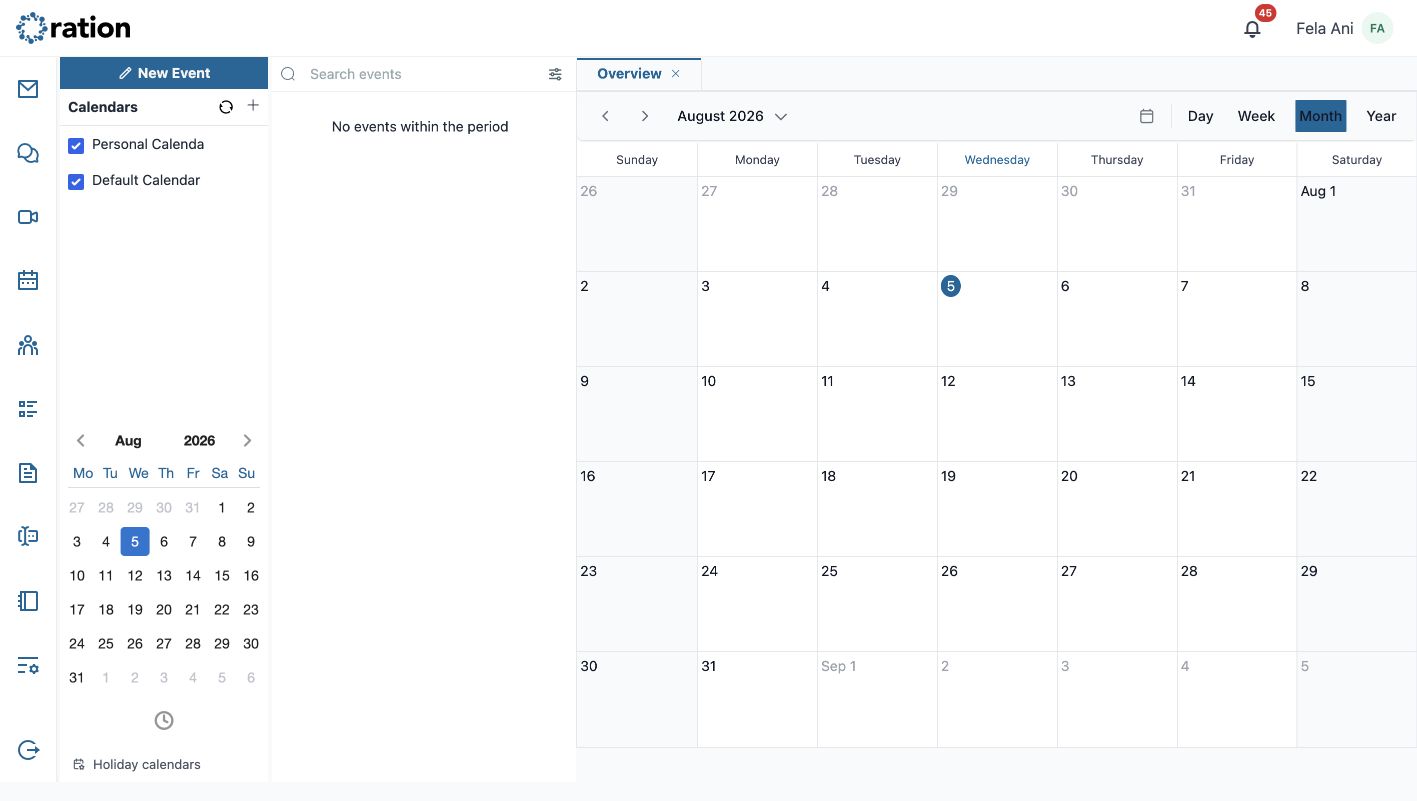
Start with the Calendars section in the left sidebar. It controls the calendars whose events appear in the workspace.
Create a calendar
Select the + beside Calendars.
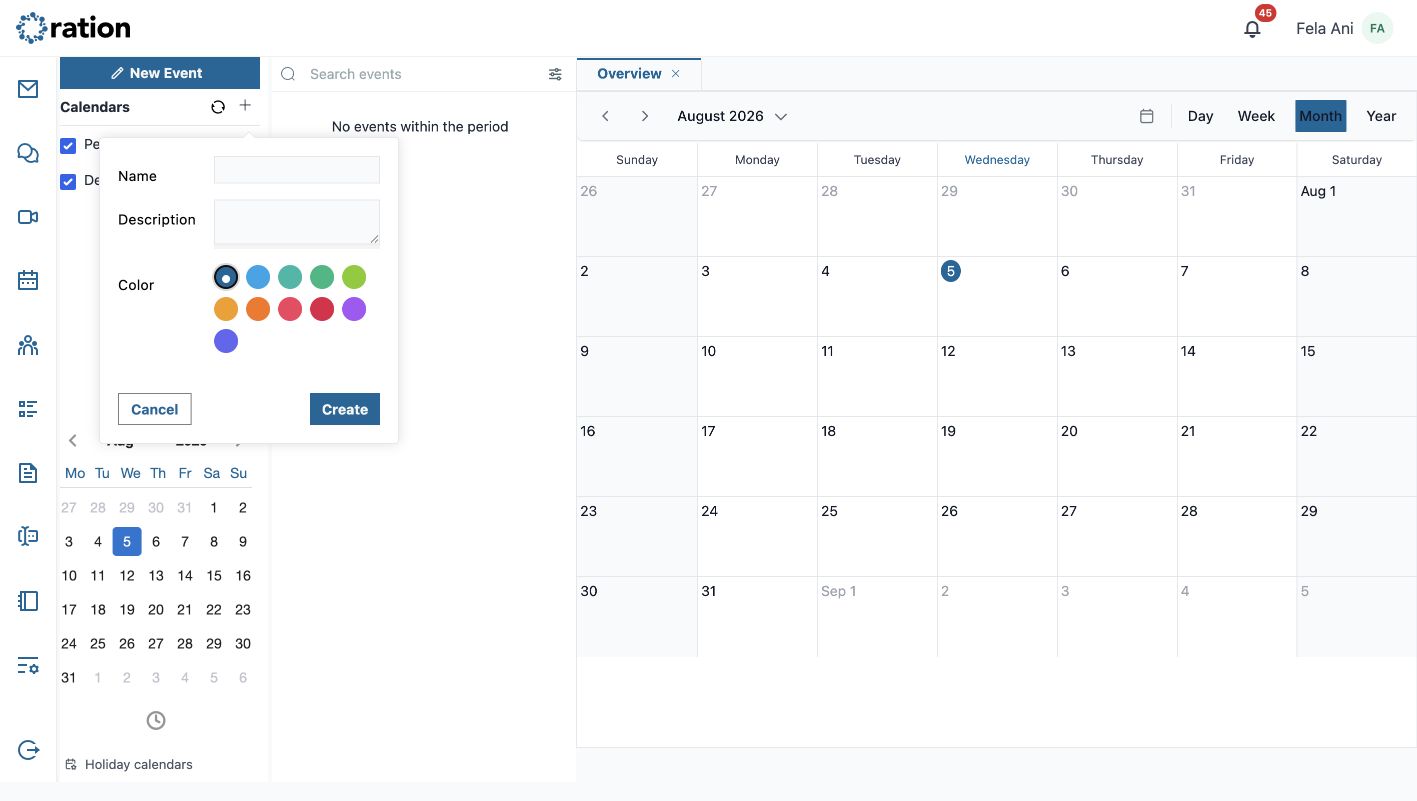
- Enter a concise Name.
- Add an optional Description to explain what belongs in this calendar.
- Choose a Color. Ration uses it to distinguish this calendar's events.
- Select Create. The calendar appears in the sidebar with its visibility checkbox selected.
Select the checkbox to hide or show that calendar's events without deleting its contents. Use the refresh control beside Calendars to refresh the sidebar list.
Edit or delete a calendar
Hover over a calendar in the sidebar to reveal its three-dots action button. Select it to open the calendar menu:
- Edit Calendar opens the calendar form with its existing name, description, color, and time-zone settings. Update the required values and select Save; select Cancel to leave it unchanged.
- Delete Calendar opens a confirmation dialog. It explains that the calendar's events will be removed unless you choose another calendar in Move events to. Choose the destination when events must be retained, then select Delete. Select Cancel to keep the calendar.
Deletion is an external and potentially destructive action. Move events to another calendar when they must be retained; otherwise the calendar and its events are removed.
Navigate the calendar
This guide uses Ration's large desktop workspace. It has four working areas:
- The far-left module rail moves between Ration applications.
- The Calendar sidebar contains New Event, Search events, the calendar refresh and add controls, selectable calendars, a mini-calendar, and the Holiday calendars section. Select a calendar checkbox to show or hide its events. Use the mini-calendar arrows to change its month, then select a date to jump the main calendar.
- The event-list column shows events in the selected period and search results. Select an event to open it in a tab.
- The open-tab strip and main calendar keep Overview and each opened event side by side. Select a tab to return to it; select its × to close it without deleting the event.
Use the previous and next arrows to move through periods. Select the displayed date range to choose another period, or select Today to return to the current date. The calendar control and the four view buttons change the presentation:
| View | Best for |
|---|---|
| Day | An hour-by-hour plan for one date. |
| Week | Comparing a week's commitments by day and time. |
| Month | Scanning dates and longer-running plans. |
| Year | Navigating over a broader period. |
The selected view is highlighted. The large desktop layout keeps the Calendar sidebar, event-list column, tab strip, and view buttons visible together.
Start a new event
Select New Event. Ration opens a separate, closable New Event tab and asks how you want to set it up.
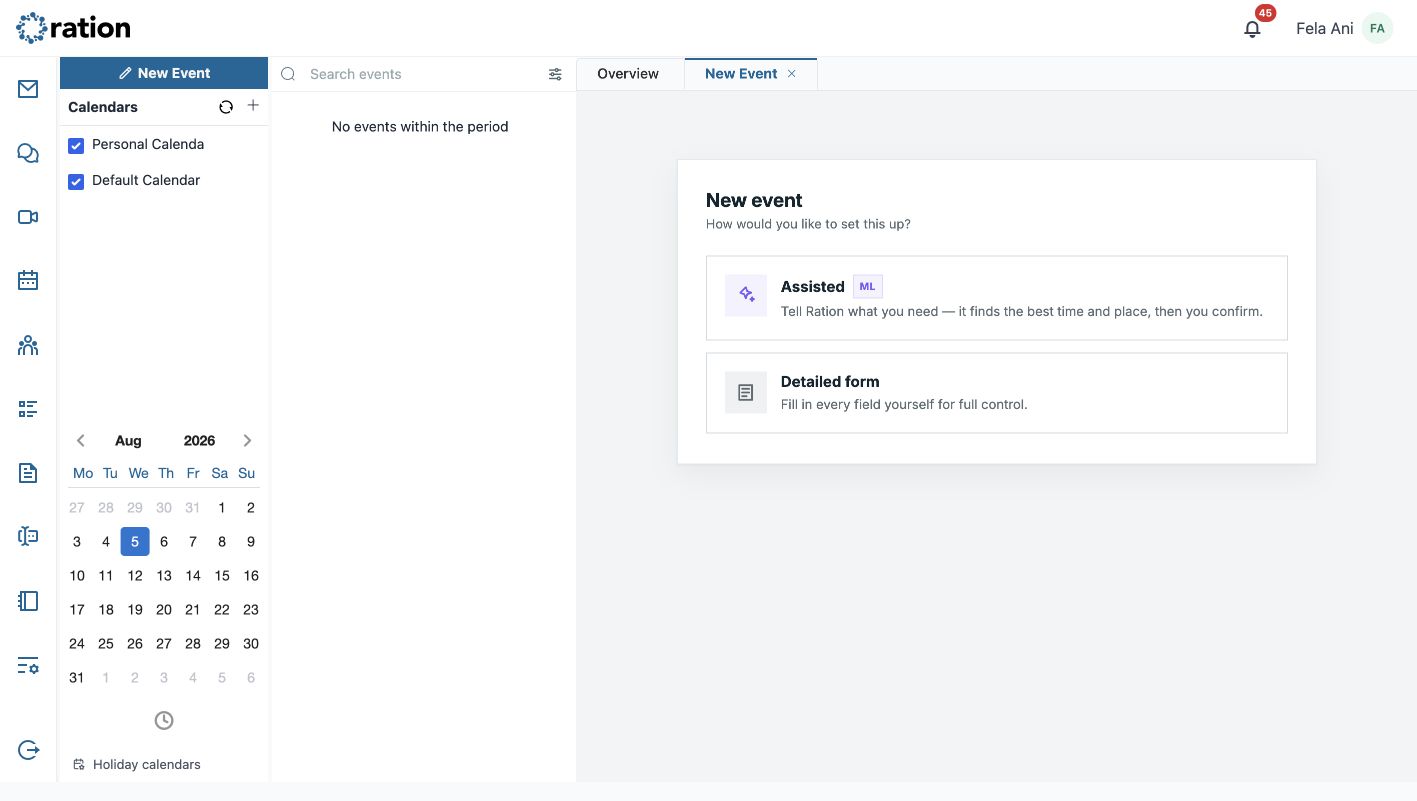
- Assisted lets you describe what you need. Ration finds a suitable time and place, then you review and confirm the suggestion.
- Detailed form opens all available fields so you can define the event yourself.
Use Assisted when you need help finding a workable slot. Use Detailed form when the time, attendees, location, or recurrence needs exact control.
Create an event with the detailed form
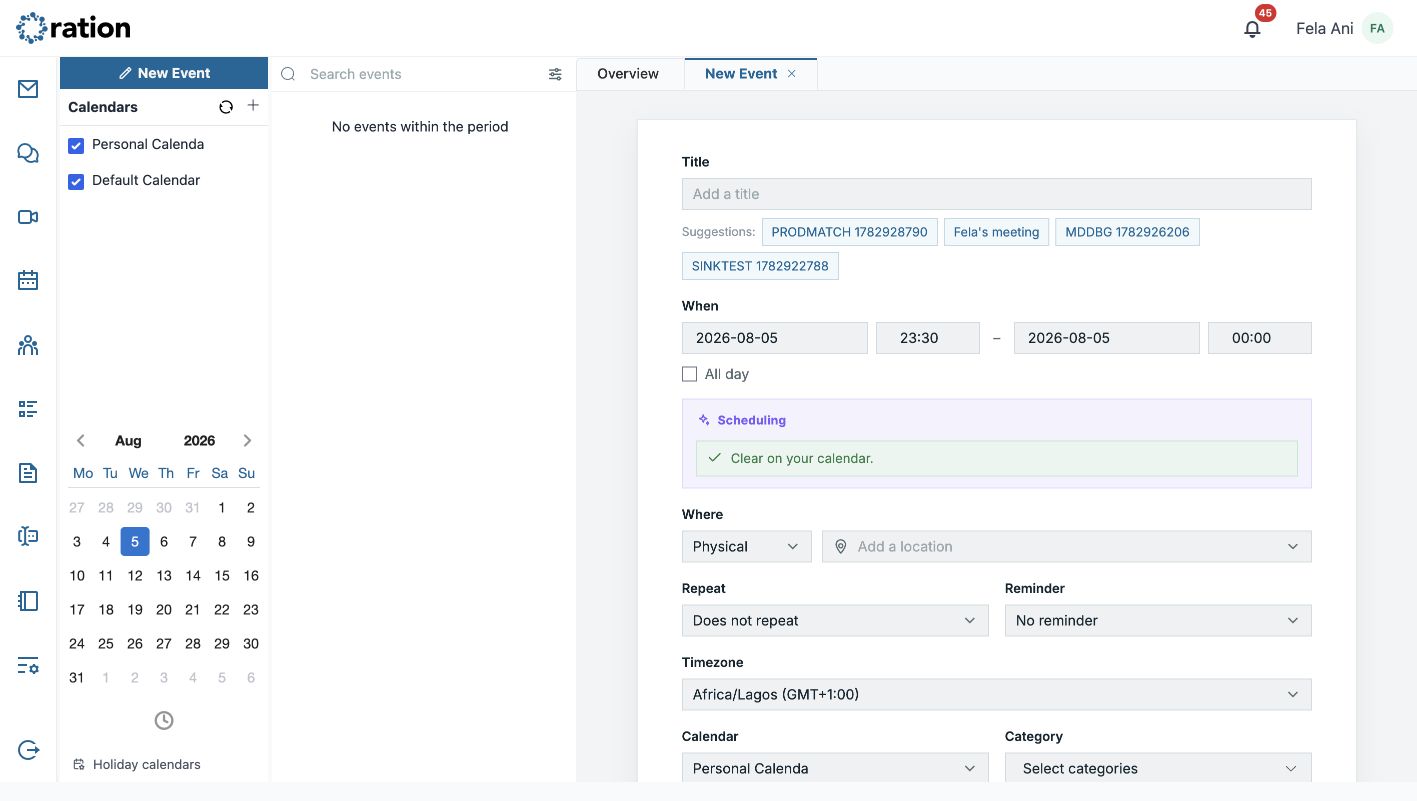
Complete the form in this order:
- Enter a clear Title. Ration may show title suggestions; choose one only if it accurately describes the event.
- Under When, set the start and end dates and times. Select All day for an event without a specific time. Ration shows a warning when the event is outside your configured working hours.
- Check Scheduling before inviting people. It indicates whether the chosen period is clear on your calendar.
- Under Where, choose Physical, Virtual, or Generic, then add the appropriate location or meeting details.
- Set Repeat to a built-in pattern such as Daily, Weekly, Every Weekday, Bi-Weekly, Monthly, or Yearly; use Custom when none of those rules fits.
- Select a Reminder interval, from no reminder through the offered minute, hour, day, and week options.
- Choose the correct Timezone. This is especially important for events with people in another region.
- Choose the target Calendar, optionally apply a Category, and add Attendees.
- Add context in Description. Suggest agenda can help start an agenda; review and edit the result before sending an invitation.
- Select Create event only after checking the title, date, time zone, attendees, and recurrence. Select Cancel to abandon the unsaved event.
Creating an event can make it visible on a shared calendar and can send invitations or reminders. Confirm attendee addresses, scheduling details, time zone, and notification expectations before selecting Create event.
Find events
Use Search events in the Calendar sidebar to find an event by its available matching details. Select an event from the results to open it in a tab, where it stays alongside Overview. Use the filter control beside the search field to narrow the event list when it contains many items.
To find older events, select Year in the view switcher, then use the previous arrow or the displayed period selector to move back to the required year. Select the relevant calendar in the sidebar and use the event list or calendar grid to open the event.
Add an event to another calendar
Open an event to see its full details and sharing panel.
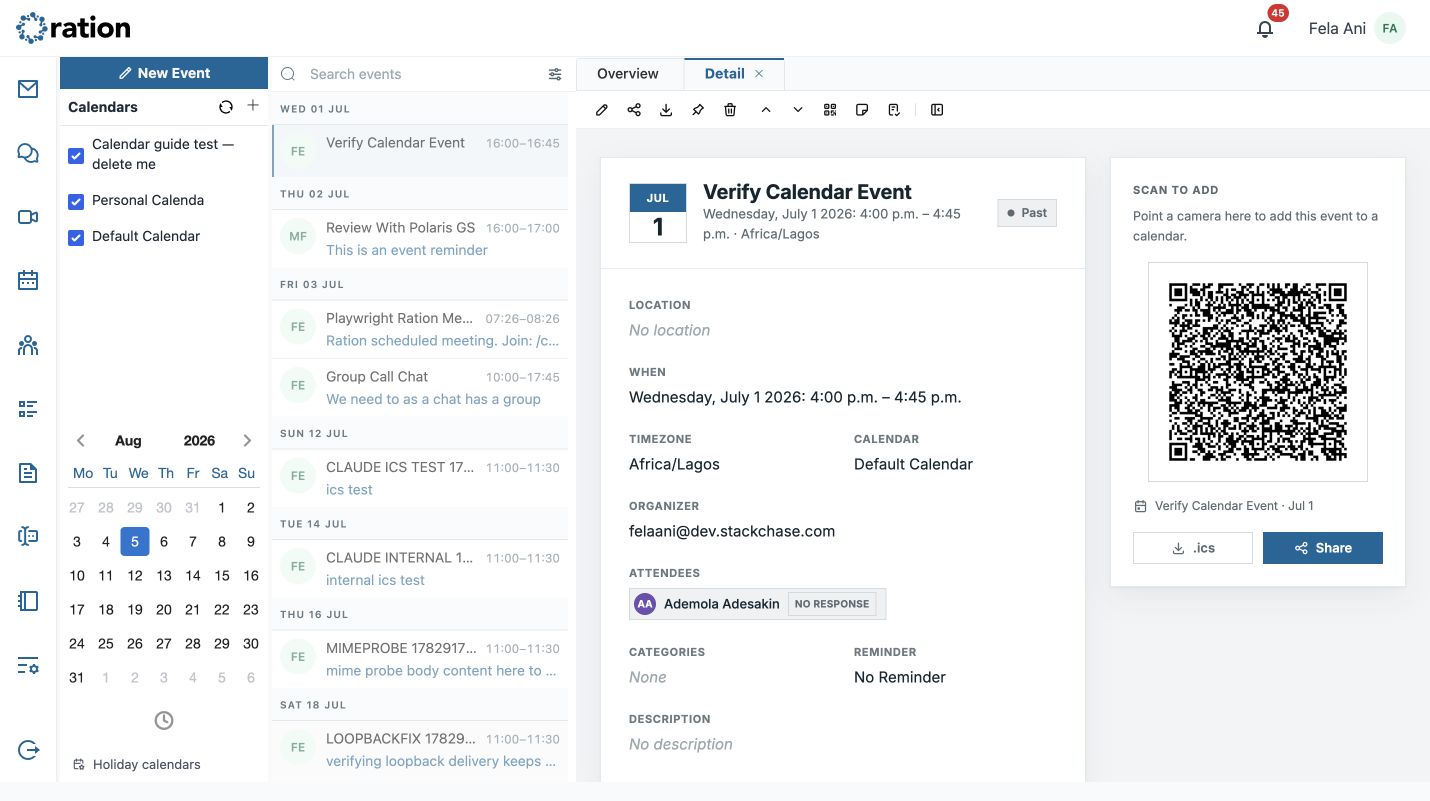
Every event has its own Scan to add QR code. A participant can scan it with a camera to add that specific event to a calendar without manually re-entering its date, time, and location.
- Select .ics to download a standard calendar file for that event. Import the file into another calendar application when direct access to Ration is not available.
- Select Share to use the device's sharing option, or the available copy/share fallback, to send the event details through an approved channel.
- The detail page also shows the event's location, schedule, time zone, calendar, organiser, attendees and their response states, categories, reminder, and description. Review these before exporting or sharing.
Use the QR code for a quick mobile handoff and the .ics file when the recipient needs a portable calendar attachment. Both refer to the individual event you opened.
CalDAV compatibility
Ration supports the CalDAV calendar standard, allowing compatible calendar clients to discover and work with Ration calendars using the organisation's approved connection settings. The standard CalDAV discovery path is:
https://app.ration.works/.well-known/caldav
For Ration-hosted accounts, use the managed discovery address above. If your organisation runs Ration on-premises or through an MSP, use the CalDAV address and authentication requirements supplied by that provider.
CalDAV is useful when you need ongoing calendar synchronisation in a client that supports the standard; use the per-event .ics download when you only need to transfer one event.
Use the event-detail toolbar
The icon toolbar above an event detail provides these actions, from left to right:
| Tool | What it does |
|---|---|
| Edit | Opens the detailed event form so you can change its fields. Select Save to keep the changes. |
| Share | Opens the available device sharing flow, or uses the copy/share fallback. |
| Download .ics | Downloads the selected event as an iCalendar file. |
| Pin | Keeps the event open in its own persistent, closable tab. |
| Delete | Opens the irreversible event-deletion confirmation. |
| Previous event / Next event | Moves through the events in the current list without returning to Overview. |
| Show QR | Enlarges the event's QR code. The enlarged view also includes Download .ics and Share. |
| Add note (past events) | Creates a linked note for outcomes, minutes, or follow-up context. |
| Add task (past events) | Creates a linked follow-up task from the event. |
| Collapse sidebar / Expand sidebar (large desktop) | Hides or restores the Calendar sidebar to make more room for event details. |
Actions vary with the event state: Add note and Add task are available only after an event has ended, and the previous/next controls are not shown for a pinned event tab.
Edit or delete an event
Select an event from the calendar grid or the event-list column to open it in its own tab.
- To edit, open the event editor, change the appropriate title, schedule, location, recurrence, reminder, time zone, attendees, or description fields, then select Save. Cancel instead when you do not want to keep the changes.
- To delete, use the event's delete action. Ration presents a confirmation warning that the action cannot be undone. Select Yes, Delete only when the event should be removed; select Cancel to keep it.
Deleting an event removes it from its calendar without deleting the calendar itself.
Coverage note
This guide covers the verified large-screen calendar workspace, calendar creation and deletion, navigation across current and past periods, new-event choices, detailed event creation, event QR/ICS access, and event editing/deletion. Assisted scheduling results, attendee responses, and calendar settings will be documented from their completed screens in the next pass.